Education · Old hardware
A lightweight operating system: new life for an old computer
An old computer is not e-waste. How a lightweight operating system that boots from USB can turn it into a place to learn for kids, schools and NGOs.
By Nikola Gjorgiev · · 5 min read · 537 views
A computer that takes ages to open a browser is not necessarily junk. A child who needs to write a first text, draw, learn what folders are or make a first game does not need an 800-euro machine and a system that eats tens of gigabytes. They need a lightweight operating system that starts fast, needs no new hardware and leaves room for learning.
That is the real difference between a computer sitting in a cupboard and a computer that has a job again. A donated old laptop, a school PC with 256 MB of memory or a 15-year-old family machine can be a workstation for basic digital skills. Not for everything. But for much more than today's market tells us.
What makes a lightweight operating system truly lightweight?
Small size alone is not enough. A 200 MB system that needs 4 GB of RAM, a complicated install and constant upgrades is not really accessible to a school with old devices. A lightweight system uses little disk space, little memory and little time from the people who maintain it.
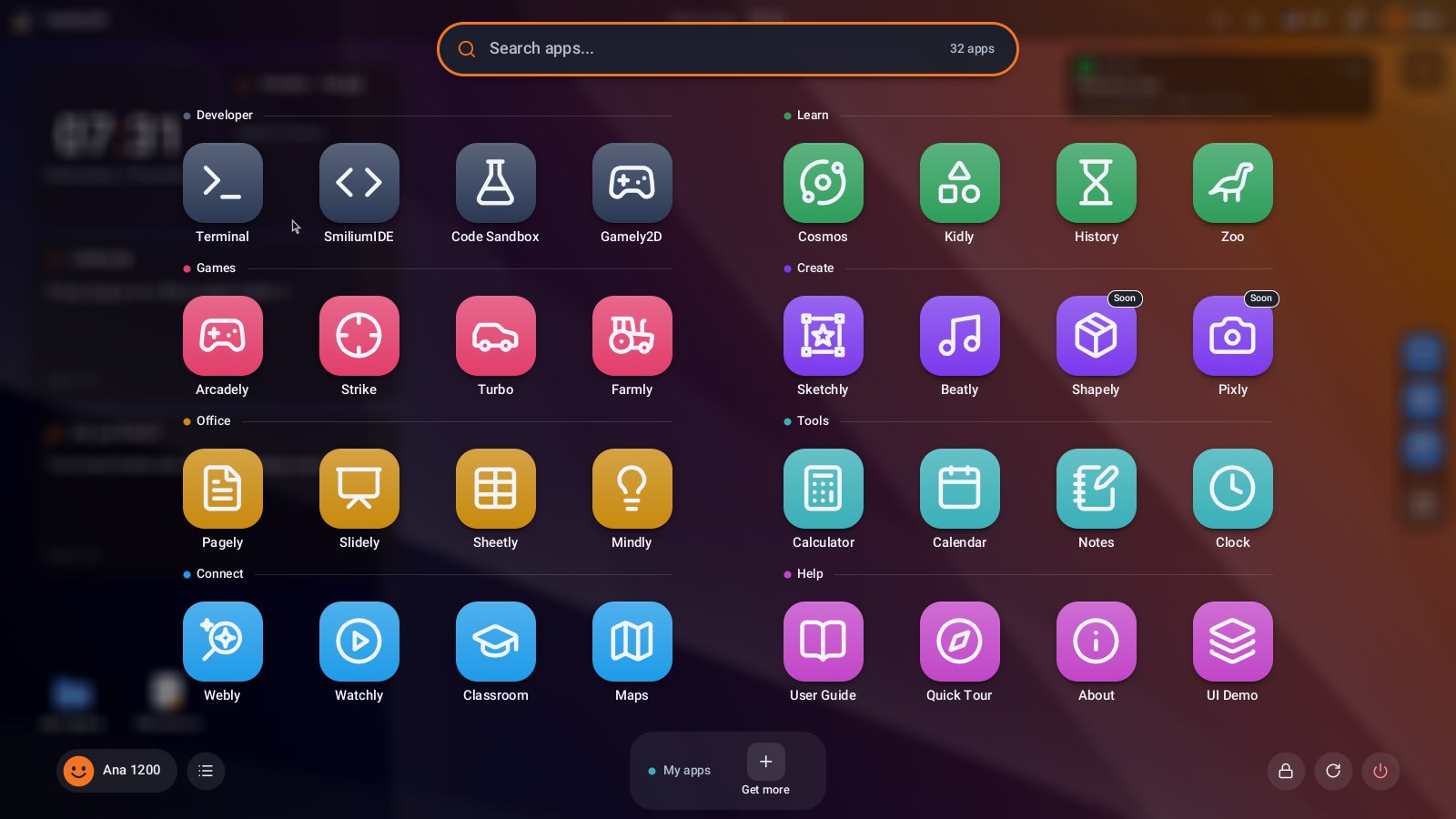
It means booting from a USB stick or a microSD card without wiping the system already on the computer. It means the basic tools are already inside: writing, drawing, simple calculations, logic games, file management and first steps in coding. And it means a child does not first have to create an account, accept tracking or enter a card to get started.
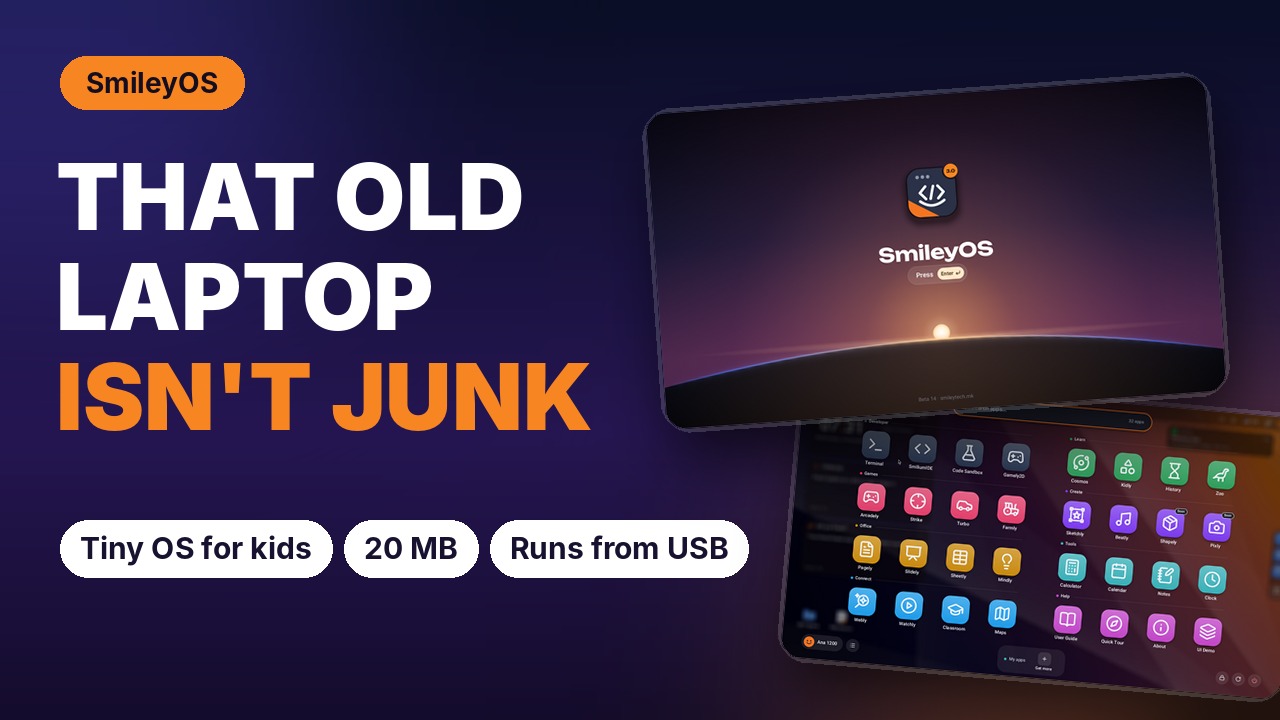
The numbers make the choice clear. 20 MB, not 64 GB. 256 MB of RAM, not 8 GB. A USB stick you can move between machines, not a long install on every single computer. When the budget is small, every megabyte and every hour of tech support counts.
Old hardware is not the same as bad hardware
The main problem with old computers is often not the processor. The problem is that modern software behaves as if every user has a new machine, fast internet and unlimited space for updates. That assumption shuts out families, schools and programmes that work with donated equipment.
A 10- or 20-year-old machine may not be good for modern 3D games, video editing or dozens of open tabs. That does not make it useless. It can be great for writing homework, typing practice, reading local materials, basic graphics, learning terminal commands or building a small app.
This approach also makes environmental sense. Extending the life of an existing device means less e-waste and less pressure on a family or institutional budget. The cheapest computer for learning is often the one you already have.
When is a lightweight system the better choice?
Not every user has the same needs. If a student needs professional video software, the latest commercial programs or memory-hungry online platforms, a lightweight system has real limits. There is no point promising that a small system will replace a powerful workstation.
But in four common situations it is the smarter choice: when the computers are old, when the internet is weak or unavailable, when the users are beginners, and when privacy matters more than constant cloud sync.
For parents, it means a first computer that does not push children towards ads, notifications and endless recommendations. For teachers, it means the whole lesson does not start with passwords, updates and waiting. For NGOs and local centres, it means ten donated laptops can become ten usable learning spots instead of ten repair problems.
In controlled settings, such as prison education programmes, working offline matters even more. There the computer has to provide real skills - documents, files, programming basics and creative work - without open internet and without unnecessary risk. A lightweight system is not a reduced version of education. It is a carefully limited environment where the focus stays on knowledge.
Less setup, more time to work
Installation sounds simple until you have to repeat it on 30 different computers. Drivers, partitions, admin passwords and the fear of wiping someone's old work are real obstacles. That is why a system that runs straight from a USB stick has a practical advantage.
The user plugs in the stick, picks USB at boot and gets a familiar desktop. When they are done, they shut the computer down and pull out the stick. The existing system on the disk stays untouched. That helps in schools where equipment is shared, and at home where nobody wants to risk the family photos and documents.
Portability brings another benefit: the environment can be the same on different machines. A child does not have to relearn where the drawing app is just because they are on a different laptop today. A teacher does not have to explain three different menus. Consistency is not a luxury when people are just learning how a computer works.
Software should grow with the child
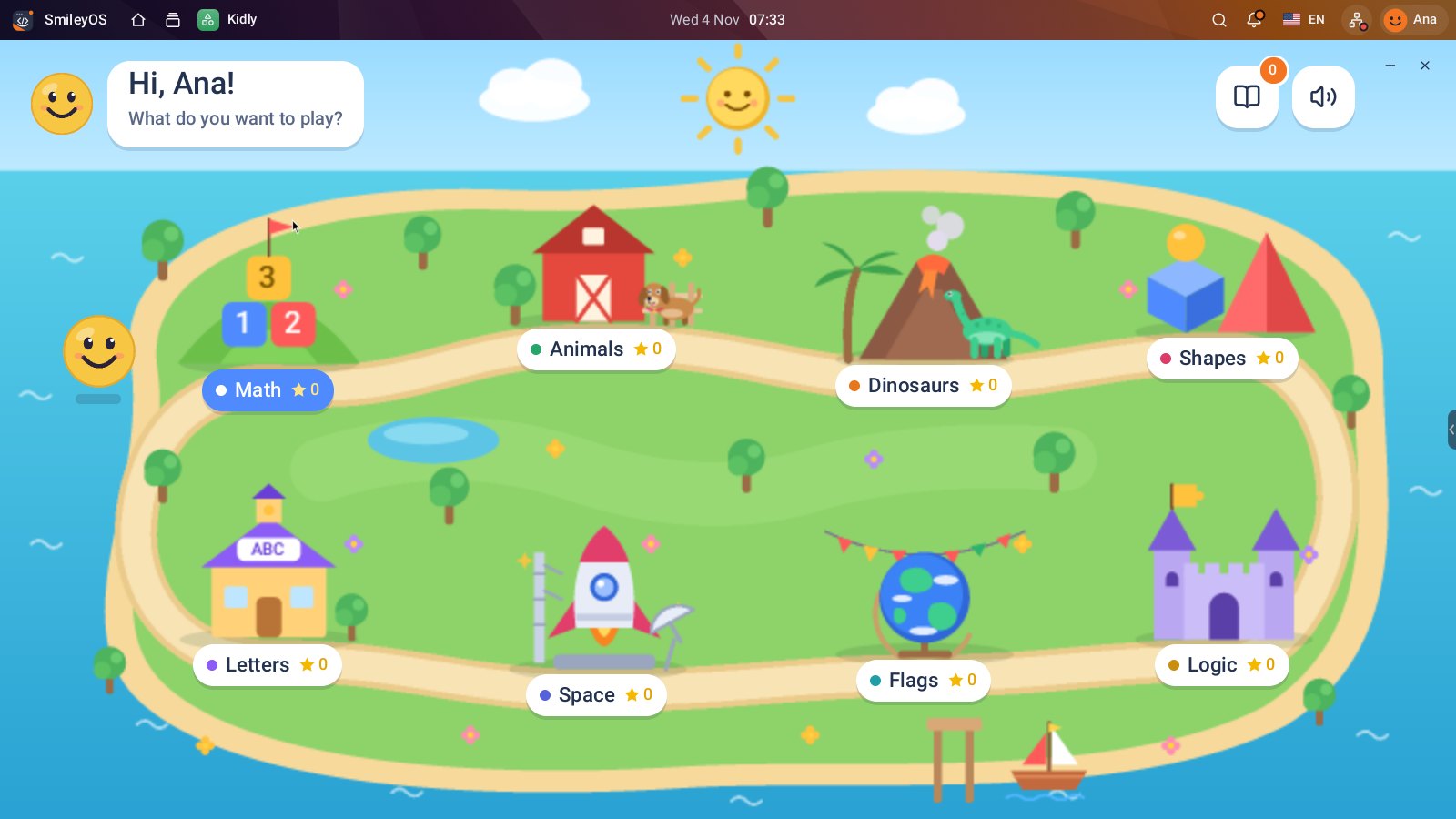
A good educational system does not stop at big icons and colourful games. They are a good start, but not the goal. A child should gradually move from moving the mouse to working with files, from opening apps to writing text, and then to logic, code and creating things.
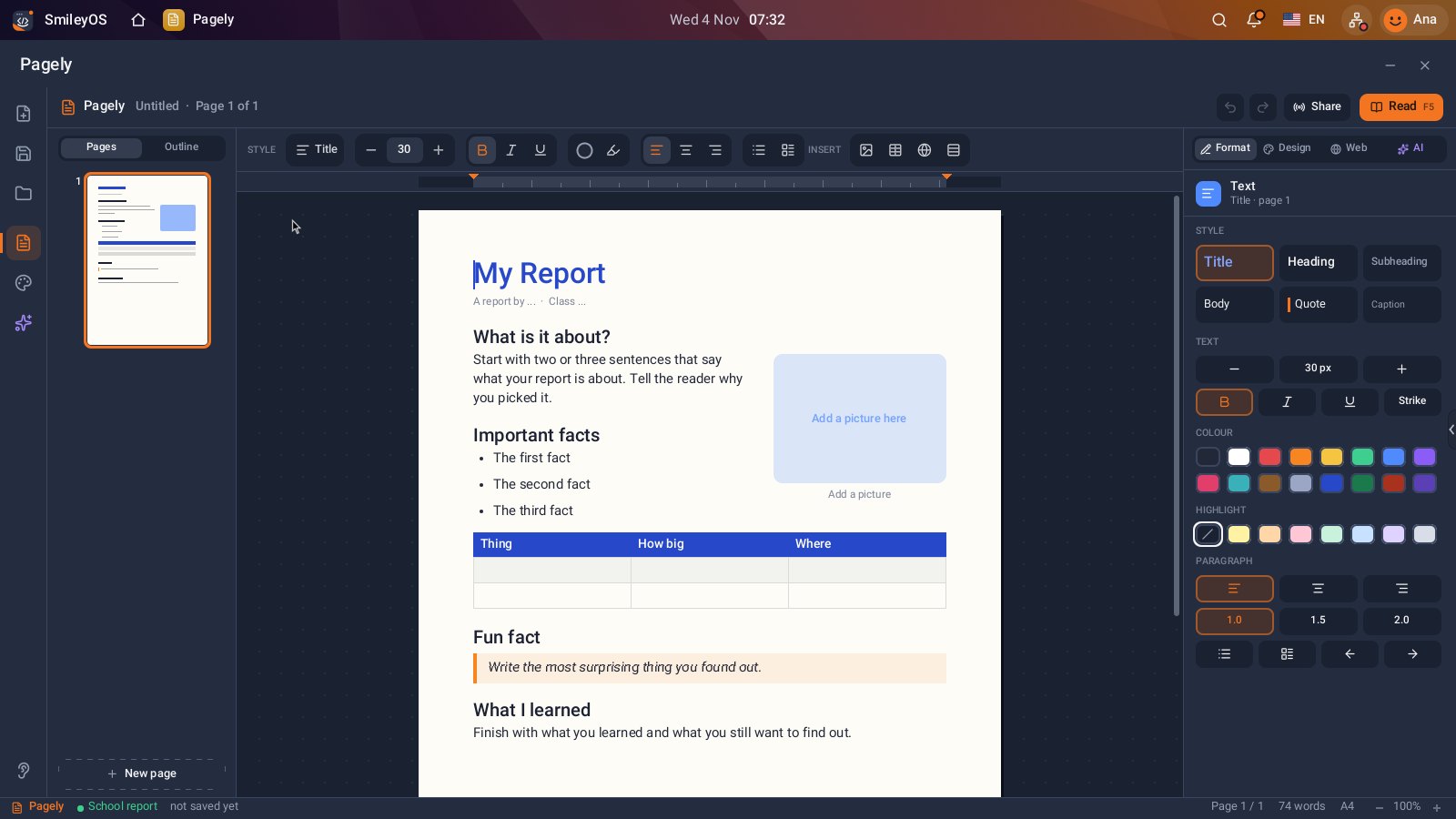
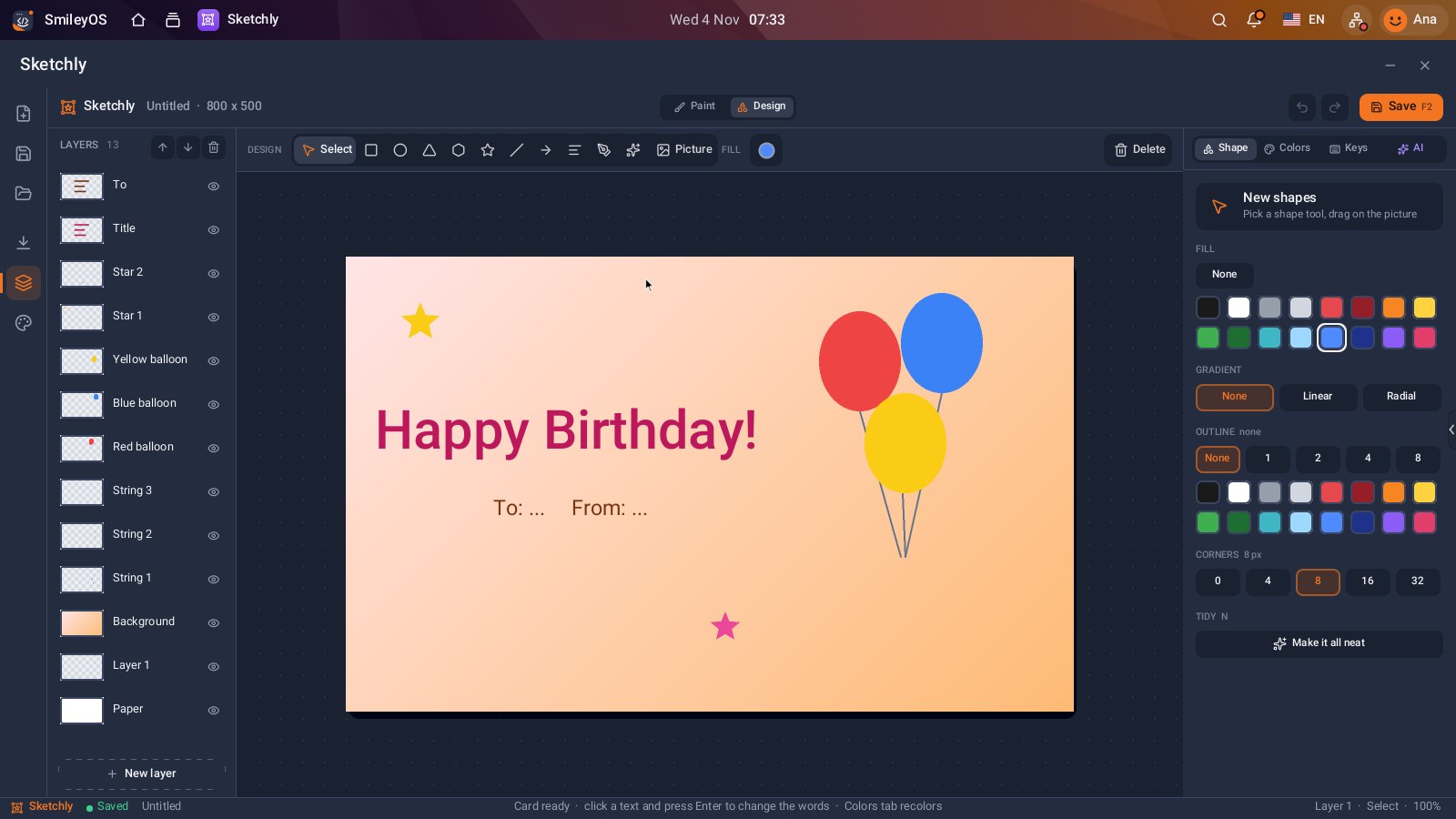
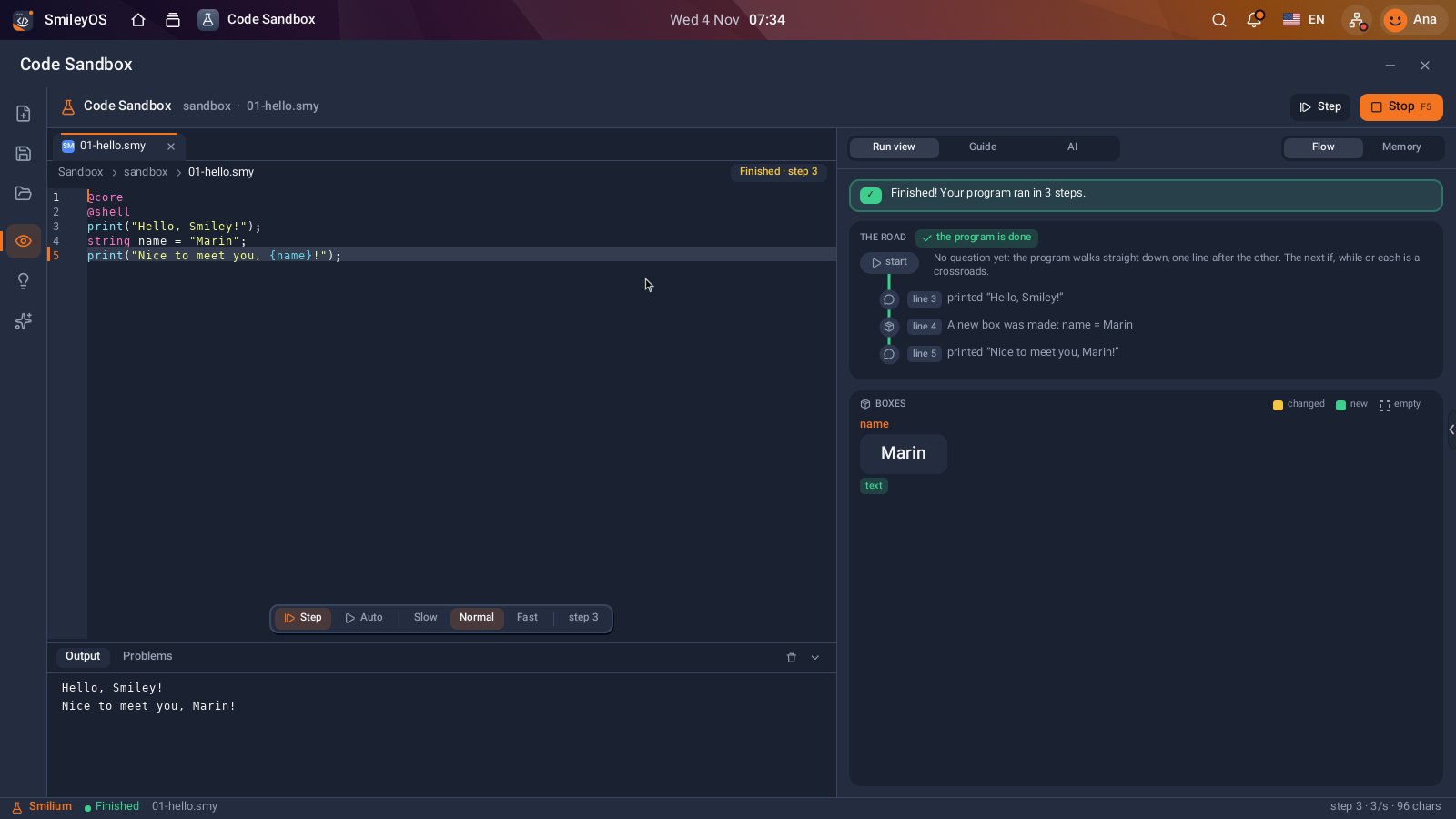
That is why integrated tools matter more than a long list of programs nobody uses. A basic text editor, a simple drawing tool, educational games, a terminal and a programming environment cover much of the first years of digital learning. When these tools work offline, learning does not stop because the router went down or the data plan ran out.
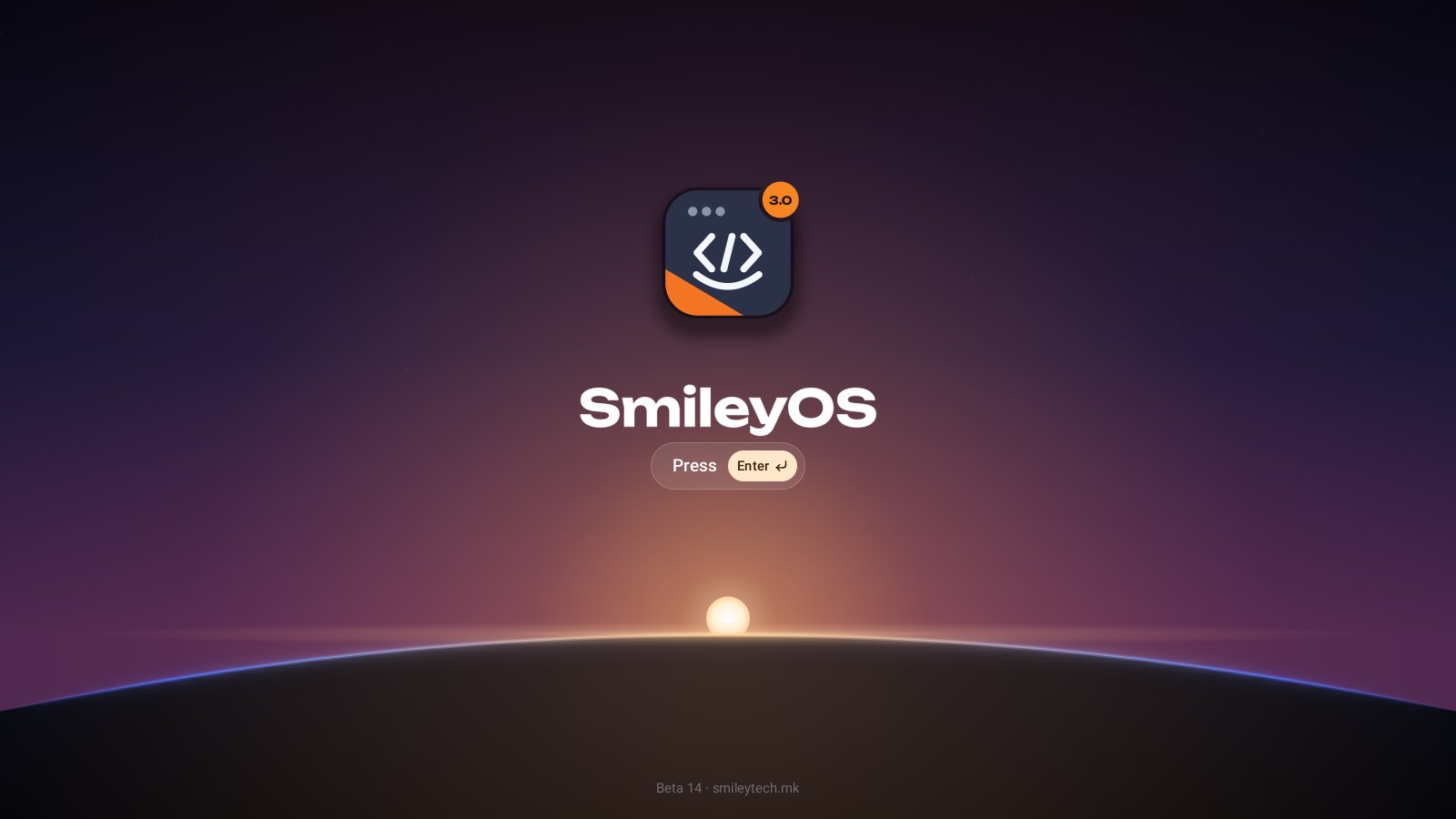
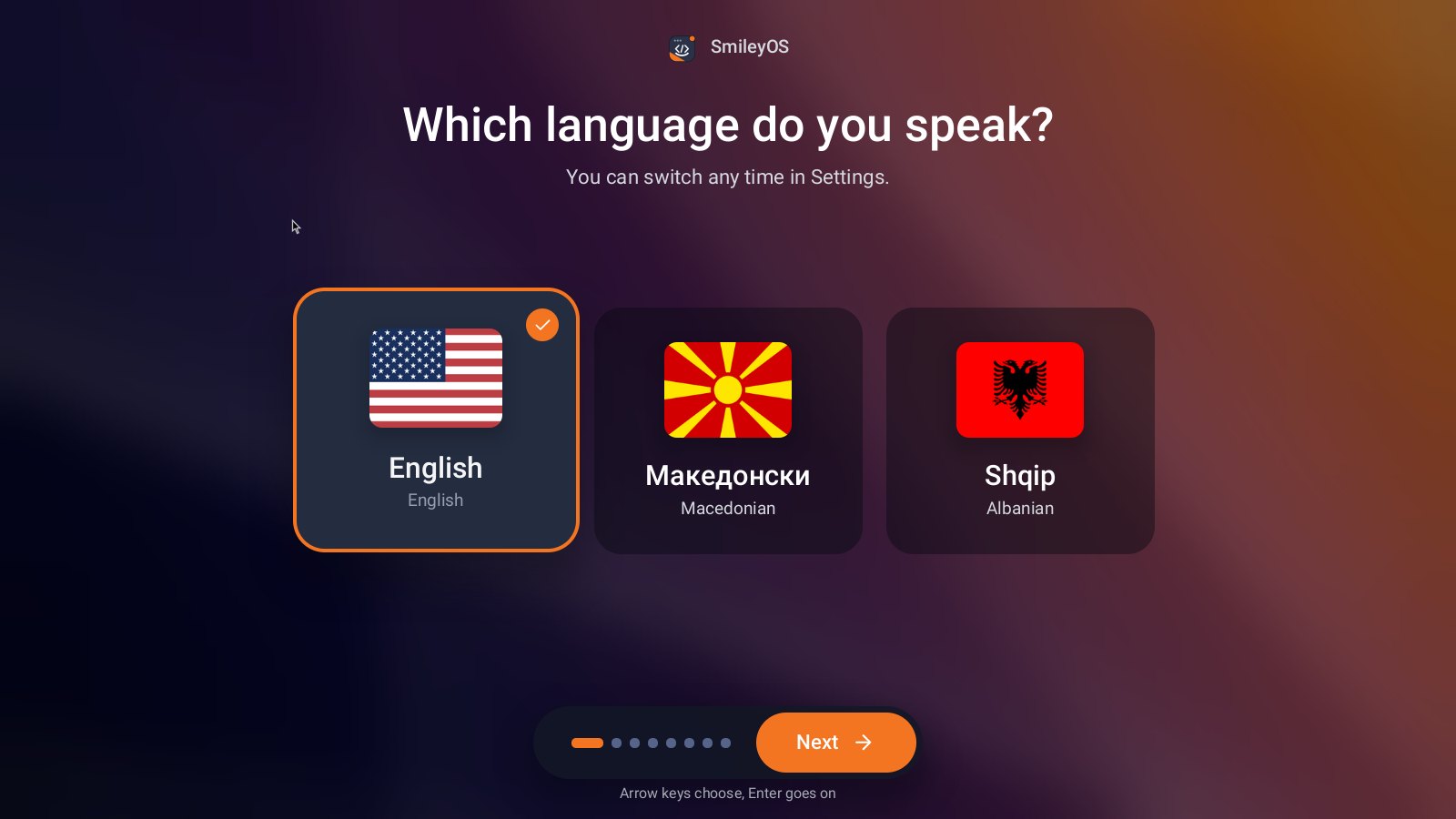
SmileyOS is built around exactly that idea: a small core of about 20 MB, with built-in apps and games that can run on very modest hardware. Instead of forcing old machines to pretend they are new, it gives them a clear and useful role in learning.
What to check before choosing a system
First, check how much memory the computer has and whether it can boot from USB. That information is worth more than the laptop's marketing description. If the device has only 256 MB of RAM, look for a system built for that limit, not one that merely calls itself "lightweight".
Next, look at what is already included. If you need to download ten more programs for writing, drawing and learning, the offline advantage disappears quickly. For beginners, clear icons, the local language and a simple structure are worth more than a thousand advanced settings.
Finally, think about who will maintain it. At home it may be one parent. At school it may be a teacher with no time to be a sysadmin. Choose an environment that is easy to restore, has careful updates and does not create new work every month.
A computer should be an invitation, not an obstacle
Digital education does not start with the newest device. It starts when a child can sit down, press a button and make something of their own. A written story. A drawn picture. A program that calculates. A game with rules they invented themselves.
If your home, classroom or centre has an old computer waiting to be replaced, first ask whether it needs a new life rather than a new landfill. A lightweight operating system can be exactly that beginning.
Try SmileyOS first
We are getting the first SmileyOS sticks ready for families, schools and learning centres. Sign up for early access and we will let you know as soon as you can try it on your own old computer.
Did you like this post?
Share this post
Know a parent, teacher or school that should read this? Send it on.