How to Revive an Old Computer Without a New Expense
Learn how to revive an old computer with a USB, a lightweight system, and small upgrades. Create a safe device for learning, work, and creativity at home every day.
By Nikola Gjorgiev · · 5 min read · 2 views
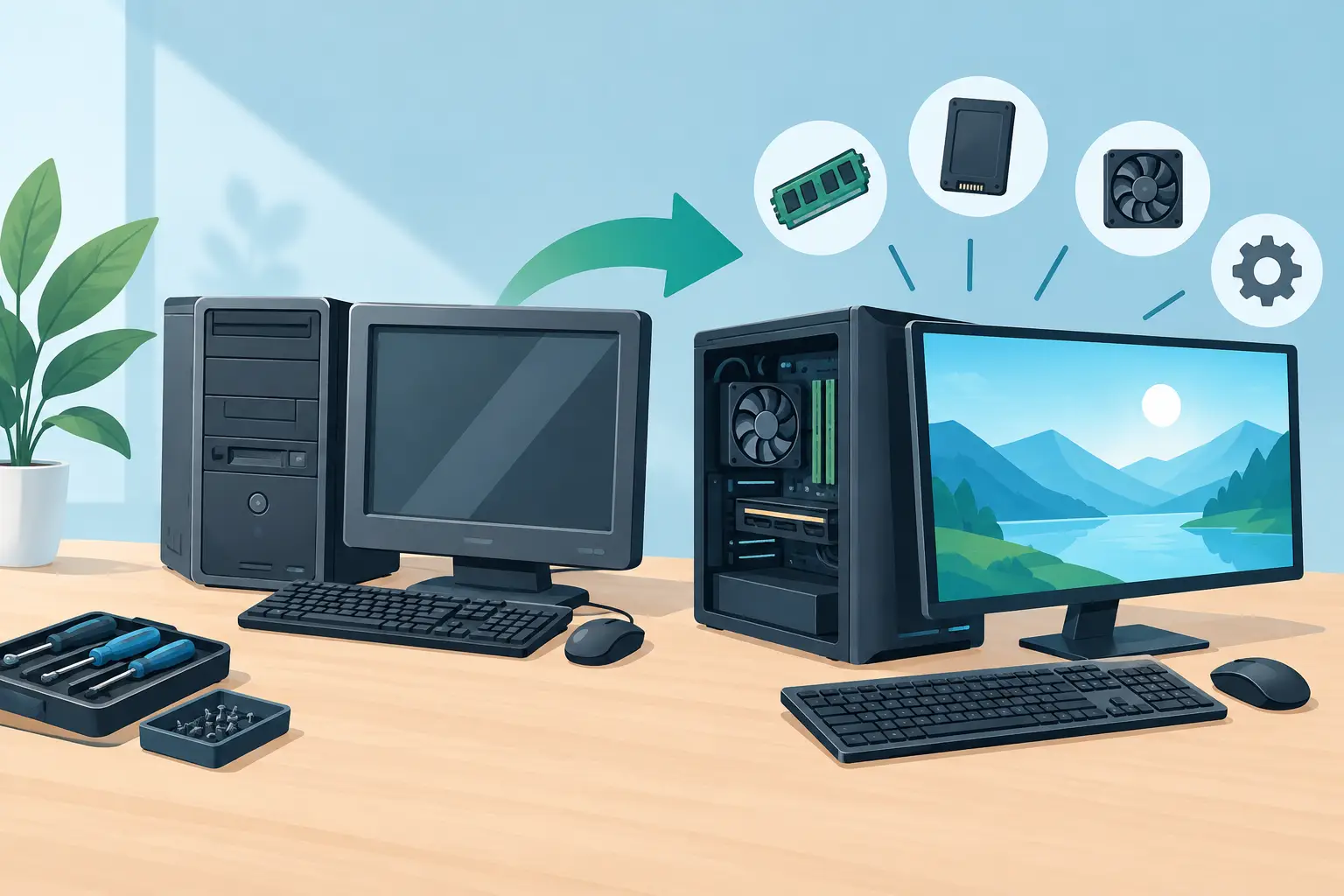
A laptop that slowly opens a single page is not necessarily junk. Often it is a machine with 2 GB of memory, an old mechanical disk, and a system that demands much more than the hardware can provide. If you wonder how to revive an old computer, don’t start by buying a new one. First, remove unnecessary software, check the hardware, and try a system designed for modest resources.
This can mean the difference between €20 for a small repair and €800 for a new device. Even more importantly, it can mean a first computer for a child, a workstation in a classroom, or an offline learning space where the internet is unreliable.
First determine what really doesn’t work
“Old” is not a technical diagnosis. The computer may be slow because the disk is full, because there is too little memory, because the battery is dead, or because the current operating system is too large for it. These problems have different solutions.
Turn on the device and listen to what happens. If the fan constantly spins loudly and the image freezes, most often the processor and memory are overloaded. If everything opens after one or two minutes, the mechanical disk is probably the main bottleneck. If it doesn’t turn on at all, try another charger, check if the indicator lights up, and remove all USB devices before drawing a conclusion.
Also look at the basic numbers: the amount of RAM, the type of disk, and the condition of the screen and keyboard. A machine with 256 MB RAM is not good for a modern commercial system and ten open browser tabs. But it can be quite useful for writing, drawing, basic programming, local games, and learning with an ultra-light system.
Before any change, save photos, documents, and important passwords on another USB device or external disk. Reviving a computer must not start with losing family memories.
How to revive an old computer with a USB system
The fastest test does not require opening the case, formatting the disk, or permanent installation. You need a USB stick and a lightweight operating system that can boot directly from it. This way the existing system on the computer remains untouched, and you immediately see if the machine still has value.
Download the system on another computer, write it to the USB, and restart the old machine. When turning on, open the boot menu—often with F12, Esc, F9, or F11, depending on the manufacturer—and select USB. If it doesn’t appear, enter BIOS or UEFI settings and check if booting from USB is allowed.
This approach is good because it is reversible. You don’t have to trust the promise that the computer will be faster—you can check it in a few minutes. Open a text document, run an educational application, check if the keyboard, sound, Wi-Fi, and screen work. If the experience is decent, you have a functional device without deleting anything from the internal disk.
SmileyTech builds SmileyOS exactly for such situations: a system of about 20 MB with built-in applications and games, which runs from USB or microSD and can use computers with only 256 MB of memory. This is not magic. It is a simple decision not to require 64 GB for tasks that can be done with much less.
Choose a task, not just an operating system
The most common mistake is trying to turn an old computer into a new one. It probably won’t be a machine for modern 3D games, video editing, or dozens of tabs with heavy websites. It doesn’t have to be.
Instead, decide what it will be used for. For a child learning to use a mouse and keyboard, the device should be simple, without ads and without constant notifications. For school or NGO, it is more important to have writing, drawing, basics of coding, and local materials than the newest browser. For a prison education program, offline work and a controlled environment are not limitations—they are prerequisites.
When the task is clear, compromises become reasonable. An old laptop with weak Wi-Fi can work great with locally saved materials. A computer with a dead battery can be a stable desktop station on a charger. A device without a camera is still great for writing stories, learning terminal commands, or creating a first game.
Small upgrades that really pay off
If the USB system works but the machine is still sluggish, one cheap change can have a big effect. For many older laptops, replacing a mechanical HDD with an SSD is the most noticeable improvement. Booting, opening documents, and saving files become significantly faster, and the device is also more resistant to shocks.
Additional RAM also helps, but only if the model allows an upgrade and if the memory is available at a reasonable price. Don’t spend much on a rare 15-year-old laptop module if for the same amount you can provide several USB devices and a lightweight system for multiple students.
Sometimes the solution is even simpler: clean dust from ventilation openings, replace a damaged charger, or connect a cheap USB keyboard. If the device overheats, first clean and test it. Opening a laptop for thermal paste makes sense only if you know what you’re doing or if the repair costs less than its real usage value.
Create a safe computer for a child or classroom
Speed alone is not enough. A beginner’s computer should have a clear desktop, limited settings, and applications that serve learning, not data collection. Offline access is an advantage here: less tracking, fewer ads, and fewer accidental clicks to content not meant for children.
Set one folder for each child’s work and agree on a simple saving rule: name, date, task. Back up to USB once a week. If the computer is shared among multiple users, let each have their own USB with their own system and files. This way the machine stays clean, and learning continues without waiting for an administrator.
Don’t measure success by how new the device looks. Measure it by whether someone can independently write a document, draw an idea, understand folders and files, make a small program, and save their own work. Those are real digital skills.
When it’s time to give up on repair
Not every computer should be saved. If the motherboard is damaged, the screen is broken, and the repair costs more than a functional used device, stop. If the battery is swollen, don’t continue using it—that is a safety risk. If the disk makes strange sounds, first extract the data.
But even then, parts can remain useful. RAM module, charger, screen, keyboard, or SSD can help another device. Responsible use doesn’t always mean repair at any cost. It means extracting maximum value before electronics become waste.
Put the old computer in front of a child with a clear task, a lightweight system, and enough time. It may not look like the newest machine in the store. But if it allows someone to create something of their own, then it is no longer an old computer—but a useful beginning.
Did you like this post?
Share this post
Know a parent, teacher or school that should read this? Send it on.