Guide · A first computer for kids
How to Choose a Computer for Kids Without Internet
A computer for kids without internet can be safe, affordable, and useful: a guide for choosing, old devices, offline learning, and privacy at home and in the classroom.
By Nikola Gjorgiev · · 6 min read · 47 views
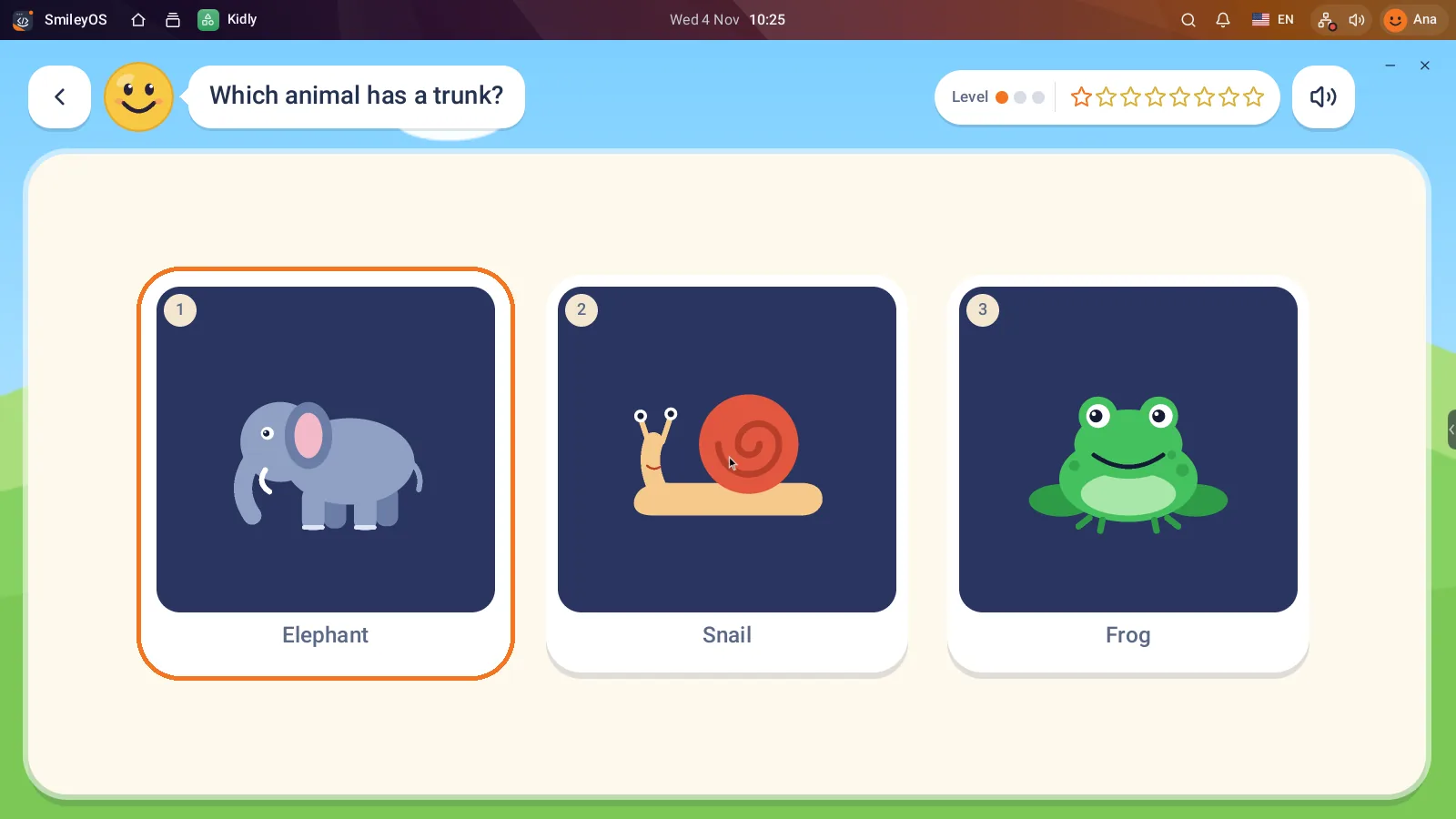
Not every child needs a browser, social networks, and dozens of notifications to start learning with a computer. On the contrary, a computer for kids without internet is often a better first step: a calm space where the child can write, draw, solve tasks, learn programming basics, and create their own games without ads, tracking, or random content.
The market has long taught us that a new computer must be powerful, always connected, and regularly updated. For a child's first computer, this is usually the wrong priority. More important are a clear purpose, ease of use, privacy, and price. If the device can give the child real digital skills, there is no reason for it to cost 800 euros or require internet every minute.
Why an offline computer is not a limitation
The internet is a useful tool, but it is not the same as computer literacy. A child learning to open a folder, name a document, write text, save a project, work with a keyboard, and understand how files work builds a foundation that will remain regardless of the future platform.
The offline environment also removes the most common obstacles. There are no pop-up ads. There is no algorithm pulling them from an educational task to videos. There is no need for the parent to constantly check what is happening in another tab. For a younger child, this means more independence. For a parent or teacher, it means less supervision and fewer conflicts over screen time.
This does not mean the internet is bad or that the child should never use it. It means the approach can be gradual. First, they learn to create, then to search. First, attention is built, then the open web is introduced with rules and adult presence.
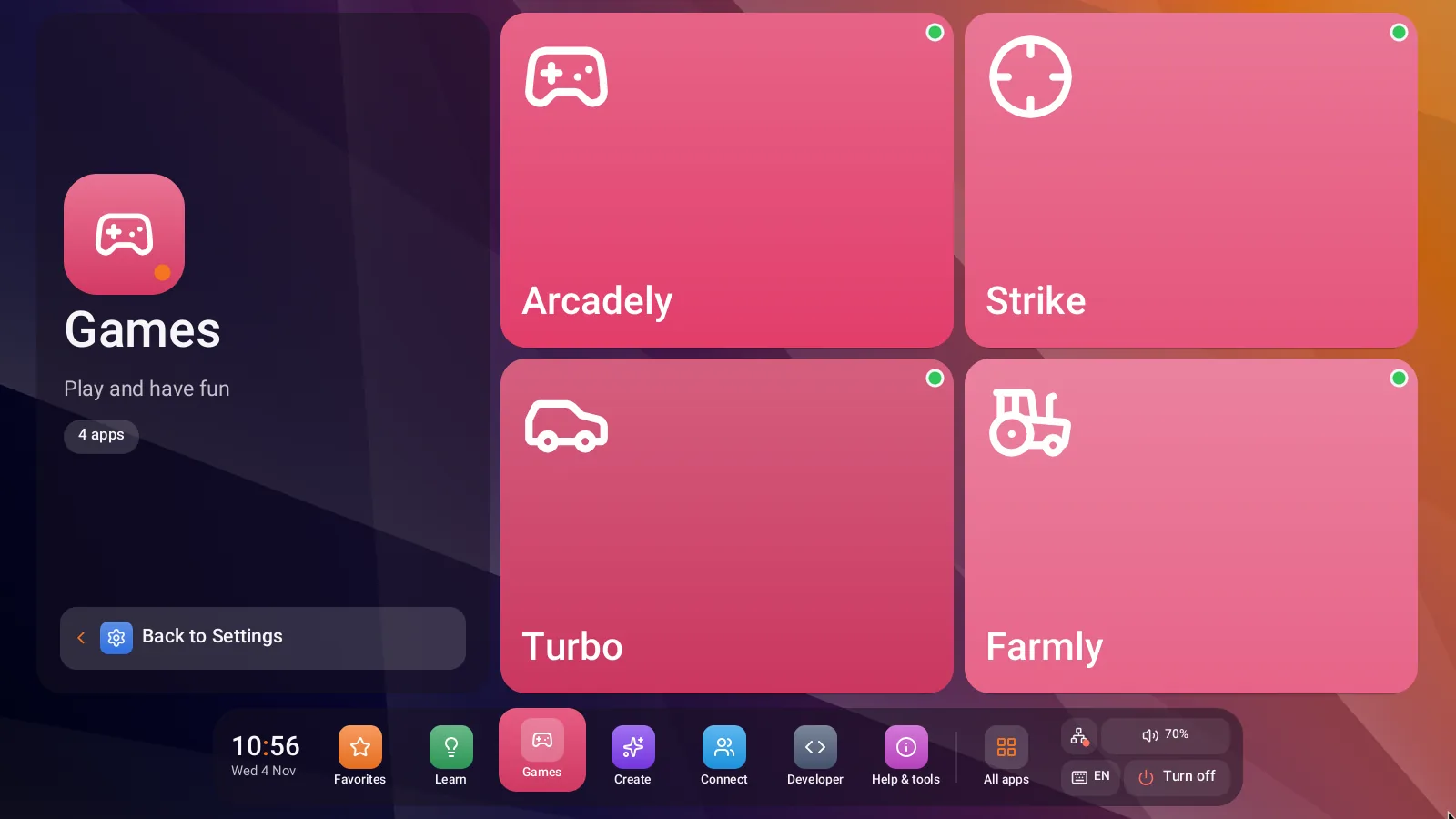
What a computer for kids without internet should be able to do
The best choice is not measured only by processor speed. Ask what the child will do in the first six months. If the goal is learning, the device should have a simple desktop, large and understandable icons, a text editor, a drawing program, simple educational games, and tools for creative work.
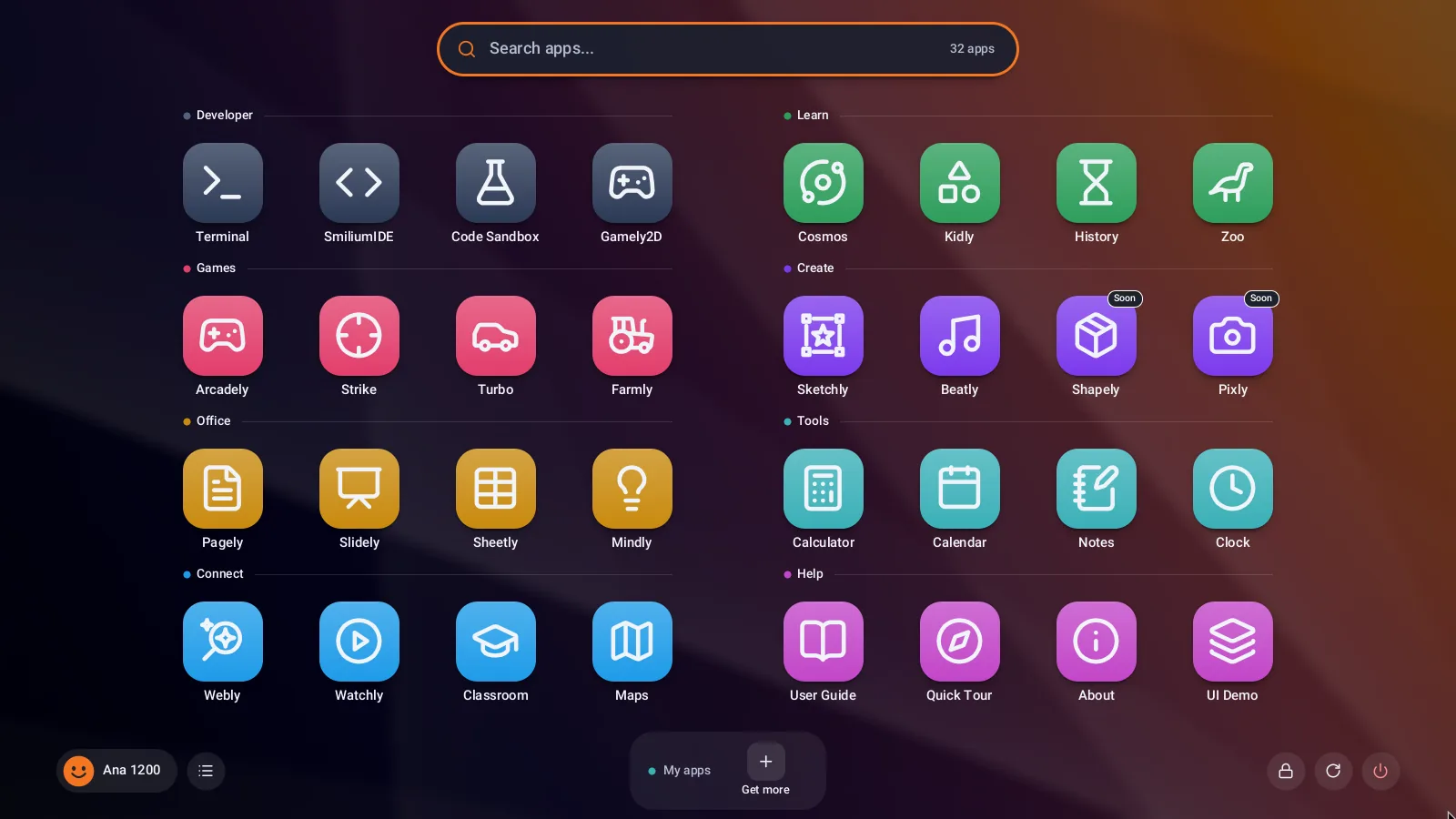
It is useful to have an environment for the first steps in programming. It does not have to look like professional code right away. It is important the child understands they can give a command, change a rule, solve a problem, and create something of their own. This can be a small animation, quiz, story with choices, or a simple game.
A good offline device should work immediately, without creating a profile, entering a card, or accepting ten terms of use. If opening a program requires a password for a cloud service, that is not a simple computer for a child. That is a service that happens to have a computer around it.
Four things worth checking
Before buying or refurbishing a device, check if it has:
- a physical keyboard that the child can comfortably use;
- a USB port for transferring tasks, photos, or new offline content;
- a battery or stable power supply, depending on whether it will be taken to school;
- a system that can work without constant updates and without internet activation.
The screen does not have to be huge, and a camera is not necessary for initial learning. A stable keyboard and a clear system are worth more than shiny specifications on the box.
An old laptop can be better than a cheap new one
Many families have a laptop 10, 15, or 20 years old that is slow for modern operating systems but quite capable for children's tasks. The problem is often not the hardware. The problem is software that has grown from a few hundred megabytes to tens of gigabytes and then demands more and more memory, space, and internet.
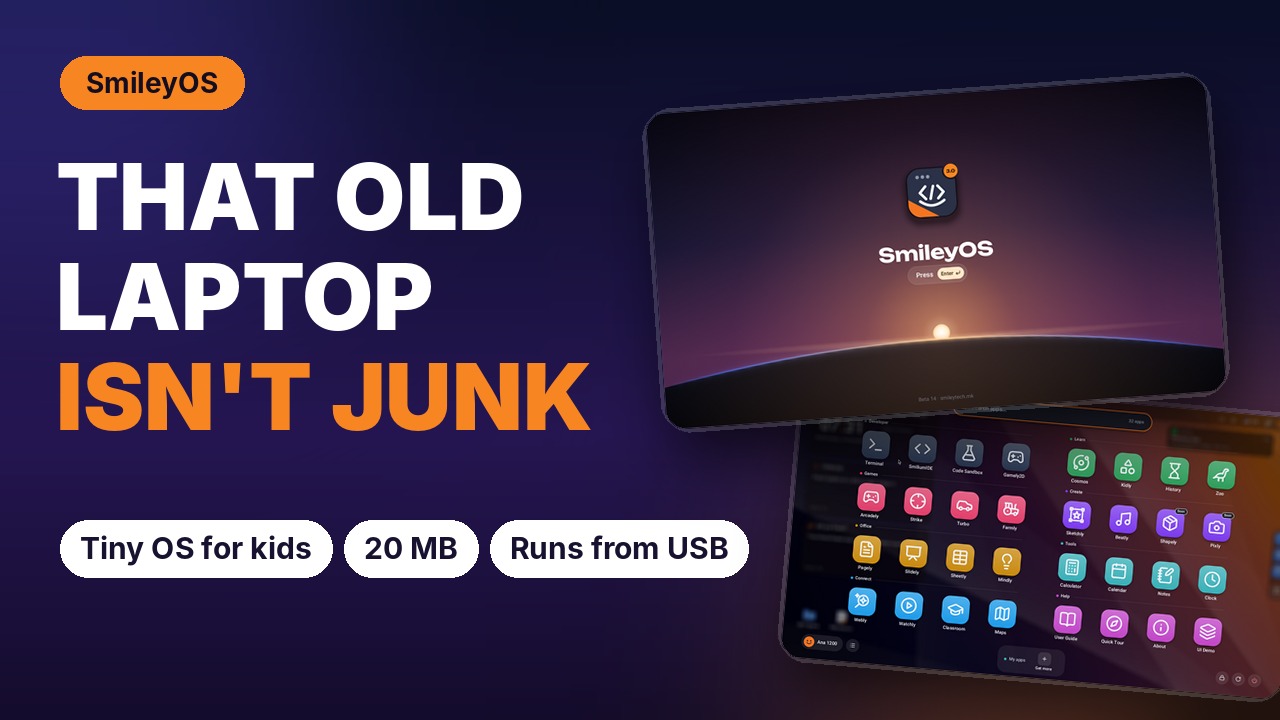
For writing, drawing, basic file work, and light educational applications, an old device does not have to be waste. With a light operating system, even a computer with 256 MB of memory can become useful again. This is a direct saving for the family but also a sensible response to electronic waste.
SmileyTech builds SmileyOS exactly on this idea: a system of about 20 MB, with integrated applications and games, that boots from a USB stick or microSD card without installation on the existing system. Instead of throwing away an old laptop because it cannot handle new software, it can become a quiet offline workstation for learning.
Still, there are limits. If the laptop has a broken keyboard, unstable battery, damaged screen, or overheating, repairs may cost more than reasonable. In such a case, it is better to look for a simple refurbished device than to invest in a problematic machine. The idea is not to save every computer at all costs. The idea is to use what can still serve.
Safety starts with design, not fear
Parents rightly worry about safety. But the safest setup is not a complicated system with ten monitoring apps. It is an environment that by default does not send data anywhere and does not offer open access to unknown content.
With an offline computer, privacy is a practical feature. Children's drawings, texts, and first programs remain on the device or USB. There is no advertising profile built from their behavior. There is no automatic photo sharing. There is no pressure to open an account just to run a basic app.
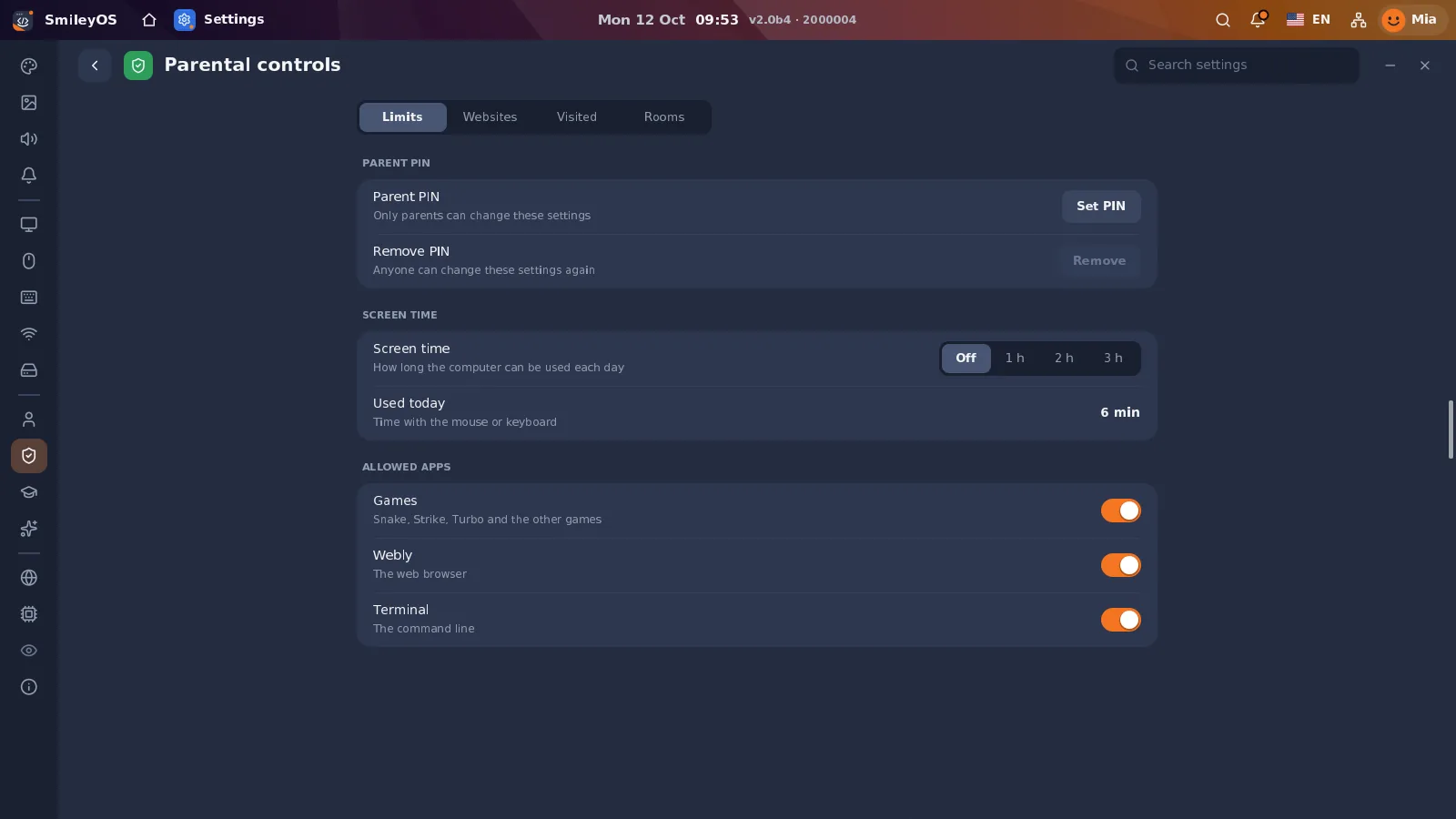
This is especially useful for schools, NGOs, and programs in controlled environments where the internet is weak, expensive, or inappropriate. The teacher can bring a USB with lessons, tasks, and creative projects, and students can work without waiting for a network. In such a classroom, one internet outage does not interrupt the whole day.
How to make the device truly useful
The computer does not become educational just because it has no internet. It needs a clear usage rhythm. At the start, choose one small task: the child writes five sentences about their favorite animal, draws a map of their room, or creates a folder named "My Projects."
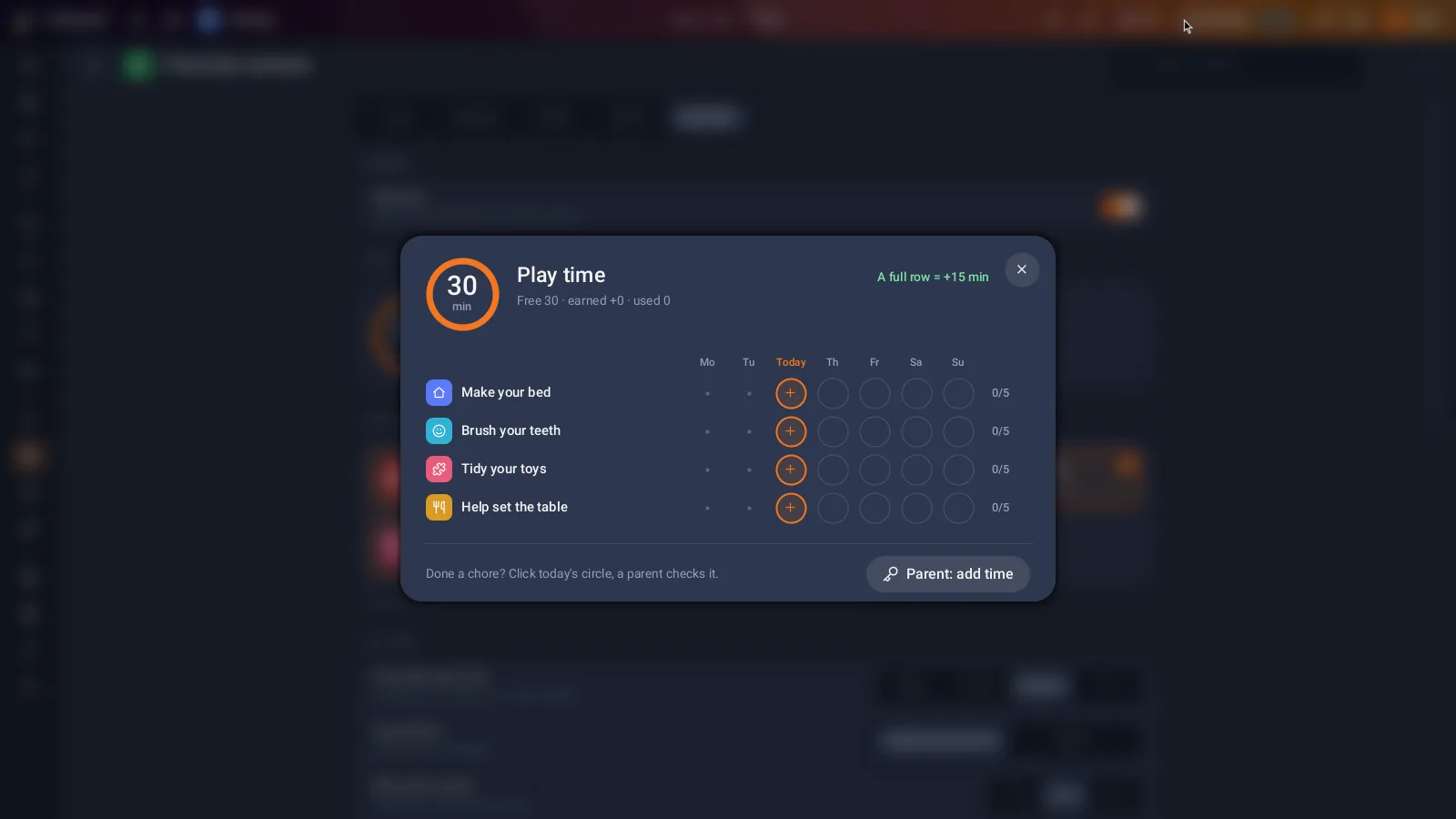
Then add new skills one by one. How is a document saved? How is a file renamed? How is an image copied from USB? How is a mistake made and then fixed? These small steps seem ordinary but they build confidence before more complex tasks.
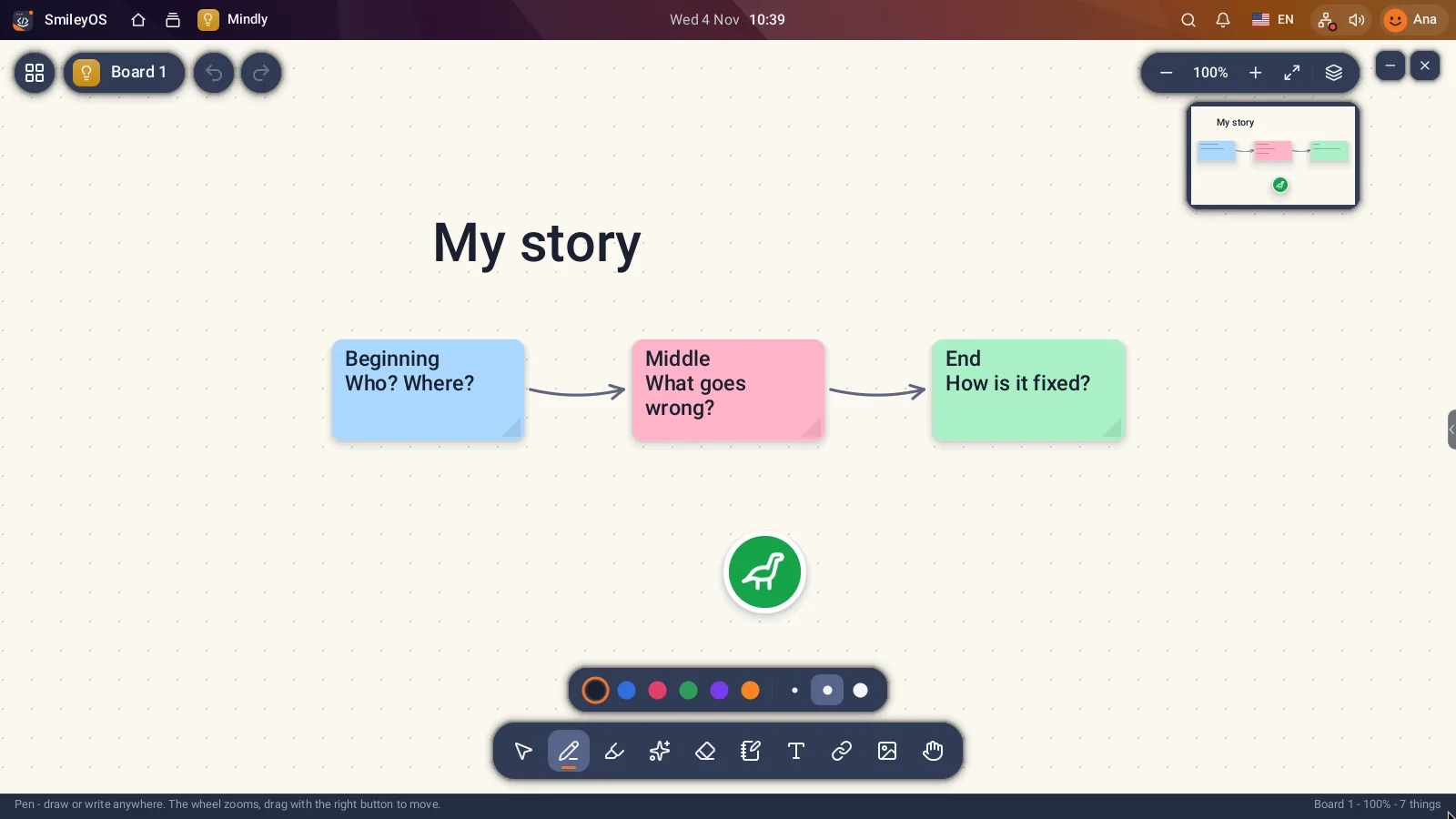
Do not turn every use into a lesson. Leave room for play and exploration. A child who has made a greeting card, invented a character in a drawing program, or changed rules in a small game learns something deeper than clicking: that the computer is a tool for creating.
When it is time for the internet
The internet makes sense when the child already knows they do not have to only consume. Then it can be introduced for a specific task: research for a school project, video call with family, or publishing creative work with adult help. It is important the approach is purposeful, not a standard mode for every screen.
For some families, a fully offline setup will remain the best solution. For others, it will be the first phase before limited and supervised internet. Both decisions are reasonable if they help the child learn calmly, safely, and with the feeling they can create something valuable on their own.
The best first computer is not the one that promises the most features. It is the one the child will open tomorrow with an idea they want to turn into their own project.
Try SmileyOS first
We are getting the first SmileyOS sticks ready for families, schools and learning centres. Sign up for early access and we will let you know as soon as you can try it on your own old computer.
Did you like this post?
Share this post
Know a parent, teacher or school that should read this? Send it on.