Coding · First steps
12 Terminal commands for beginners, tried safely in SmileyOS
The 12 Terminal commands every beginner should know, shown in the SmileyOS Terminal: move around folders, make and copy files, search and get help, with no risk and no internet.
By Nikola Gjorgiev · · 6 min read · 8 views
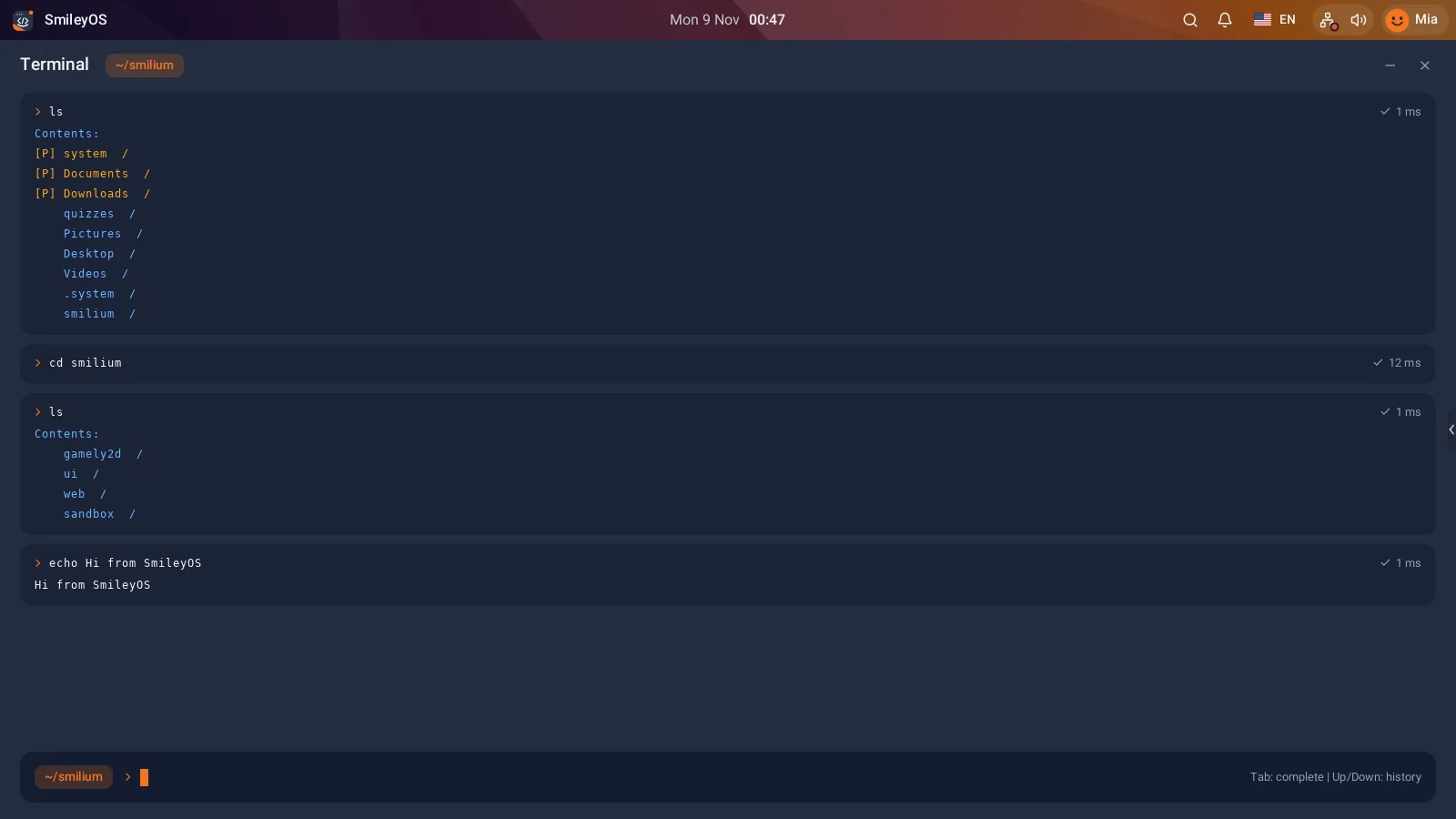
The terminal is not a black screen for hackers. It is the most direct way to tell a computer what you want: one short line, one clear answer. And it is where every young programmer meets the computer for real.
In SmileyOS the Terminal is a normal app, made for kids. It works offline, it runs on old laptops, and the files you make there are the same files you see in the Files app. Below are the 12 commands we teach first, exactly as they work in SmileyOS.
Before you type
Open the Terminal from the app launcher (the Developer group), or press Shift twice to open Search and type terminal. You will see a line with a blinking cursor. Type a command, press Enter, read the answer.
Three habits make everything easier: Tab completes command and file names, the Up arrow brings back your last command, and a typo is never a disaster: SmileyOS just tells you it did not understand.
The 12 commands
1. help - Your map of the Terminal
Type help and press Enter. SmileyOS lists every command with one line about what it does. Lost? help is always the first step.
2. pwd - Where am I?
pwd prints the folder you are in now, for example /Documents. Use it before you create, move or delete anything.
3. ls - What is in here?
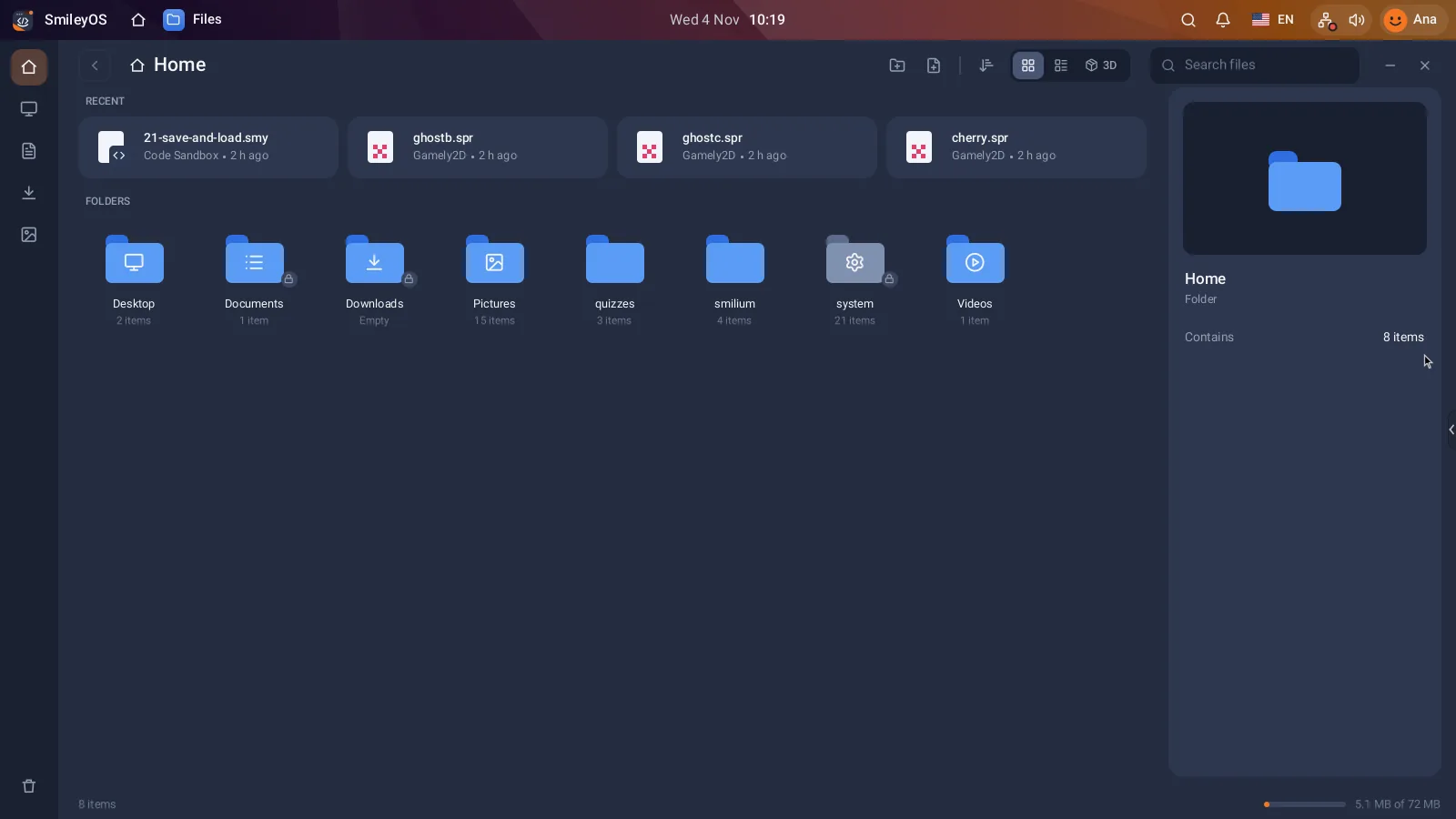
ls lists the files and folders where you stand. In a fresh SmileyOS you will see folders like Desktop, Documents, Pictures and smilium, the same ones you see in the Files app.
4. cd - Walk into a folder
cd Documents takes you into Documents. cd .. goes one level up, and cd / jumps back to the top. Type the first letters and press Tab: SmileyOS finishes the name for you.
5. mkdir - Make a folder
mkdir practice creates a new folder. Make one place for experiments and work only there at first.
6. write - Write a file
write note.txt Today I learned the Terminal creates note.txt with that sentence inside. No editor needed for a first file.
7. cat - Read a file
cat note.txt shows what is inside the file, right in the Terminal.
8. cp - Make a copy
cp note.txt backup.txt makes a copy under a new name. Copying before a big change is a habit worth keeping for life.
9. rename - Give it a new name
rename backup.txt old-note.txt renames a file or a folder.
10. mv - Move it into a folder
mv old-note.txt practice moves the file into the practice folder. Check with cd practice and ls.
11. find - Search by name
find note looks through the whole stick for files whose names contain note, and tells you where they are.
12. history - What did I type?
history lists the commands you used. The Up arrow brings back the last one, so you do not have to type it again. And clear wipes the screen when it gets busy (your files stay).
Two commands to leave for later
rm deletes a file and rmdir deletes a folder. In the Terminal they do not go to the Trash: deleted means gone. SmileyOS protects its own system files, so a child cannot break the computer with them, but a deleted homework file will not come back. For the first lessons you do not need either of them.
A 10-minute exercise
Type these lines one by one and read every answer before the next one:
mkdir practice
cd practice
write idea.txt A game about a cat in space
cat idea.txt
cp idea.txt idea-copy.txt
rename idea-copy.txt my-idea.txt
ls
pwd
history
Then open the Files app and find your practice folder with my-idea.txt inside. That moment, when the text in the Terminal and the picture in Files turn out to be the same thing, is when the computer stops being a mystery.
The next step: your first program
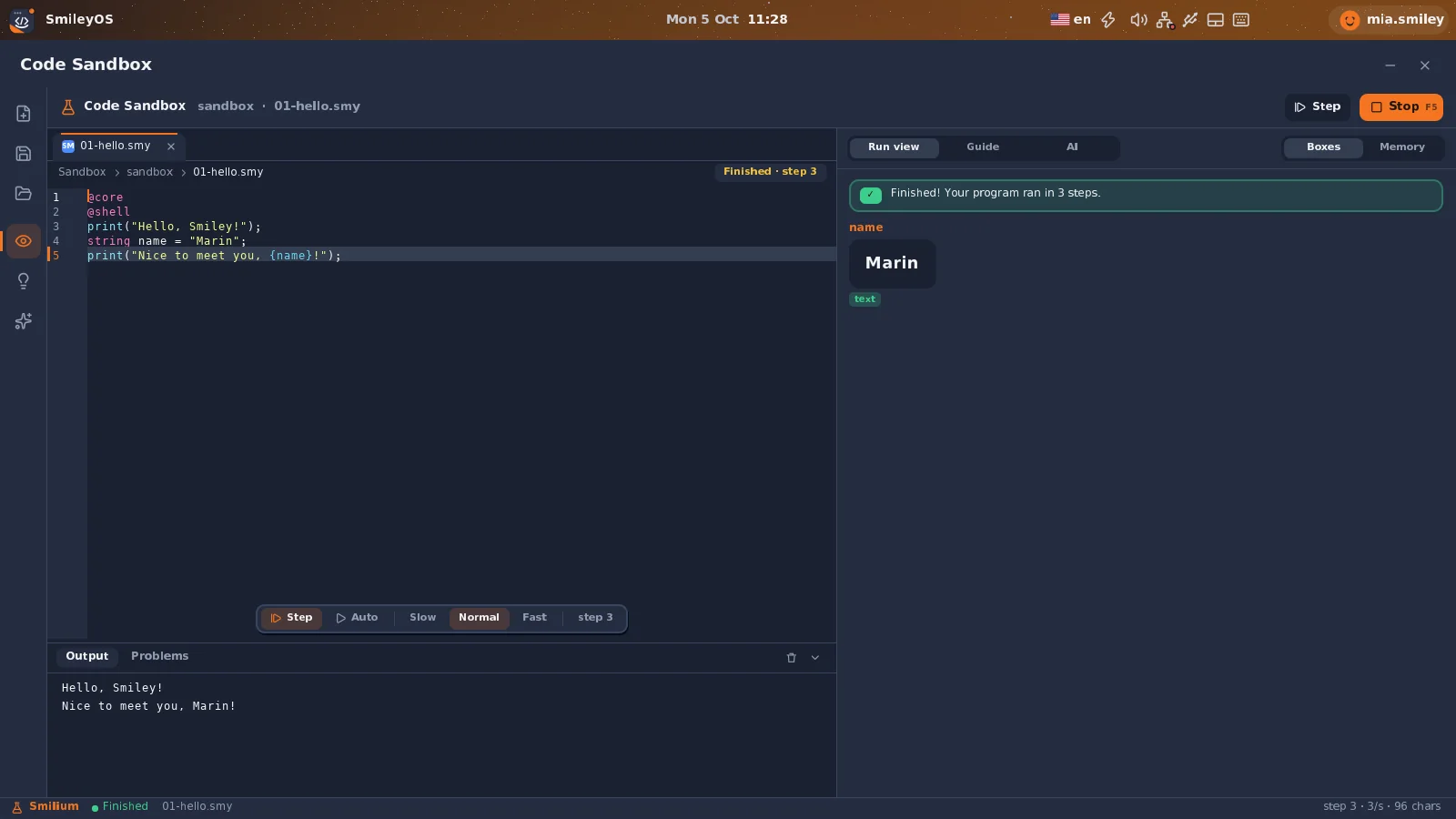
The same Terminal also runs programs. Write a small program in Smilium, the language built into SmileyOS, save it as hello.smy and type smilium hello.smy. Or open the Code Sandbox, where every step of the program and every value is shown while it runs.
Try SmileyOS first
We are getting the first SmileyOS sticks ready for families, schools and learning centres. Sign up for early access and we will let you know as soon as you can try it on your own computer.
Did you like this post?
Share this post
Know a parent, teacher or school that should read this? Send it on.