Coding · Smilium tutorial
Smilium for kids: 5 first programs to type, run and change
Five short Smilium programs for kids, from Hello to a number guessing game. Each one with a screenshot from SmileyOS, a simple explanation, a challenge and a link to run it online.
By Nikola Gjorgiev · · 8 min read · 5 views
The best way to learn programming is to type a small program, run it, and then change it. Here are five first programs in Smilium, the programming language of SmileyOS. Each one takes about ten minutes and teaches one new idea.
Where to type the programs
In SmileyOS, open the Code Sandbox (app launcher, Developer group, or press Shift twice and type sandbox). F1 starts a new program, F5 runs it slowly so you can watch every box change, and F6 goes one line at a time.
No SmileyOS yet? Every program below has a Run this program online link. It opens our online Smilium editor with the code already inside. Press Run and play.
Every program starts with the same two lines, @core and @shell. They bring in Smilium’s basic tools and let the program print on the screen. Just copy them.
1. Hello, Smiley! (boxes and words)
@core
@shell
string name = "Mia";
number age = 9;
print("Hello, {name}!", Colors.yellow);
print("You are {age} years old.");
print("Next year you will be {age + 1}!", Colors.green);
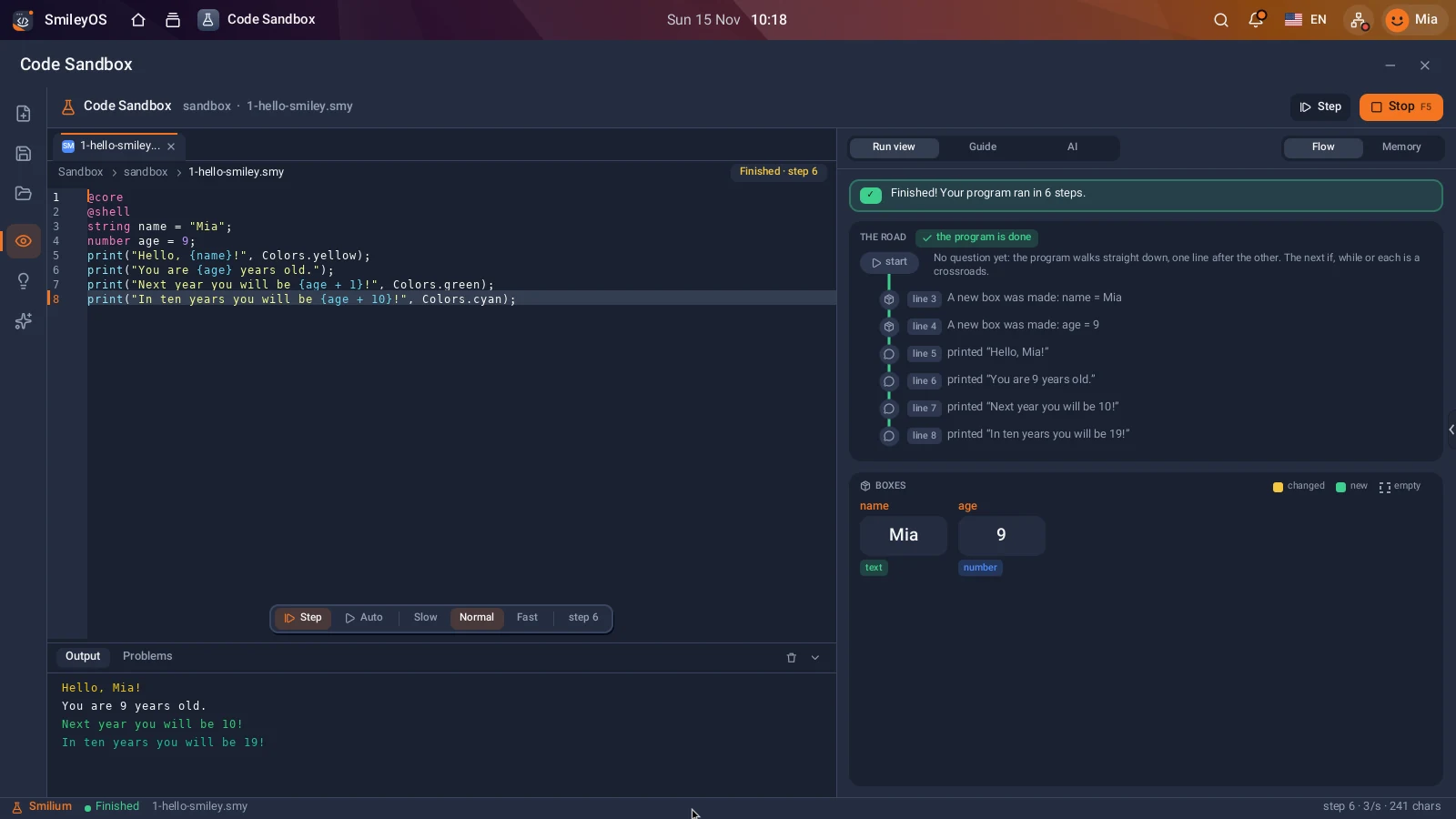
print("In ten years you will be {age + 10}!", Colors.cyan);
string name = "Mia"; makes a box called name with words inside. number age = 9; makes a box with a number. In print, anything in curly brackets is replaced with what is in the box, and you can even do sums there: {age + 1}. Colors.yellow paints the line.
Your turn: put your own name and age in the boxes. Then add a line that says how old you will be in 100 years.
2. The talking computer (ask and if)
@core
@shell
string name = ask("What is your name? ");
number age = ask("How old are you? ");
print("Nice to meet you, {name}!", Colors.cyan);
if(age over 9){
  print("Great age to write your own games!", Colors.green);
}
else{
  print("Every programmer started small!", Colors.yellow);
}
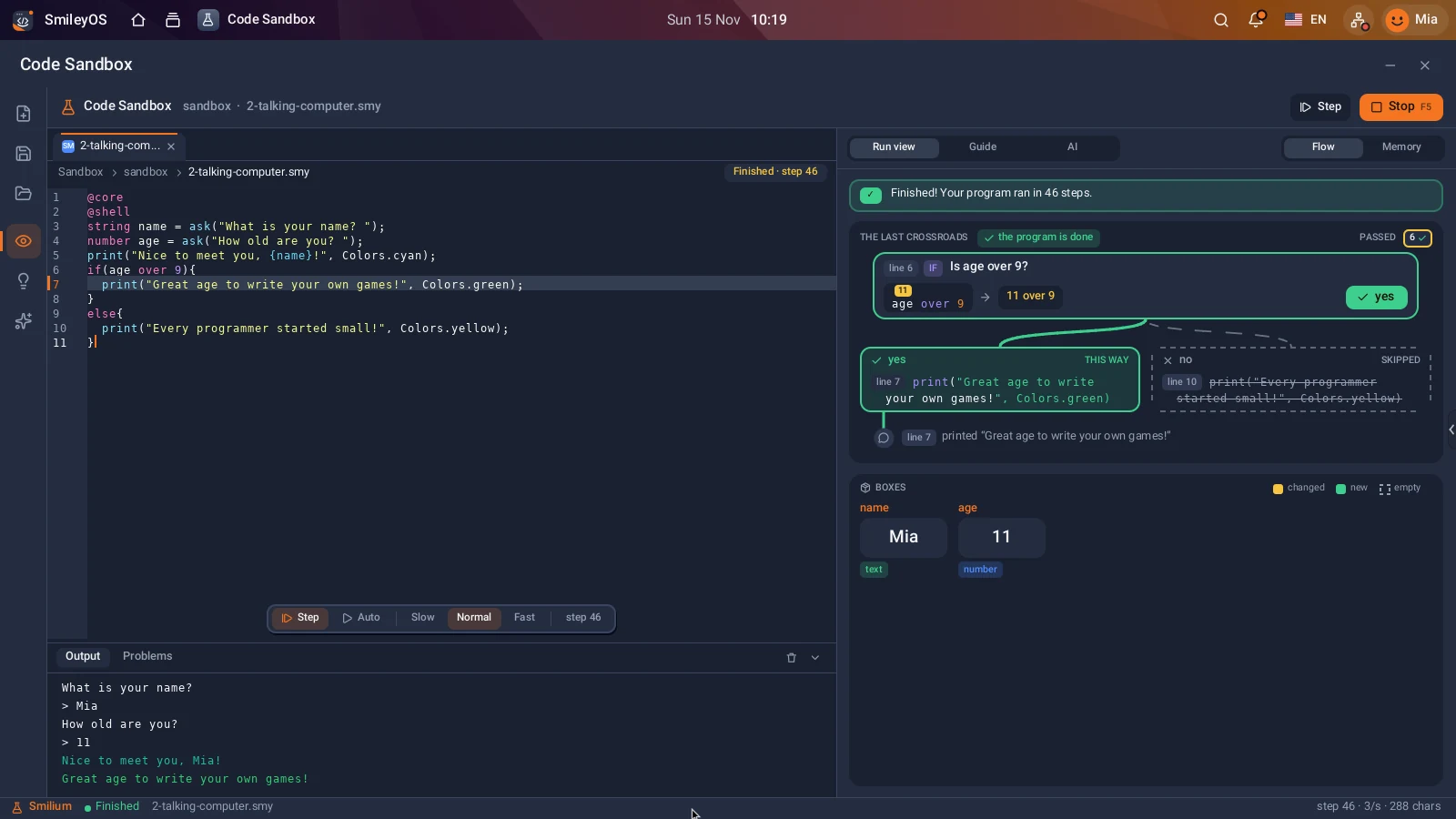
ask asks a question and waits until you type an answer and press Enter. Because age is a number box, Smilium only accepts a number there. if checks a question: is age over 9? If yes, the first block runs, if not, the else block. Smilium uses words you can read out loud: over, under, is and isnt.
Your turn: change 9 to another number and find out when the answer changes. Then ask for a favourite colour and print it in a sentence.
3. Rocket countdown (a while loop)
@core
@shell
number n = 10;
print("Rocket ready. Counting down!", Colors.cyan);
while(n over 0){
  print("{n}...");
  n = n - 1;
}
print("   ^", Colors.yellow);
print("  |S|");
print("  |S|");
print("  ***", Colors.orange);
print("LIFTOFF!", Colors.green);
while repeats its block as long as its question is true. n starts at 10, every round prints it and makes it one smaller. When n is 0, the question "n over 0?" says no, and the program goes on to the rocket.
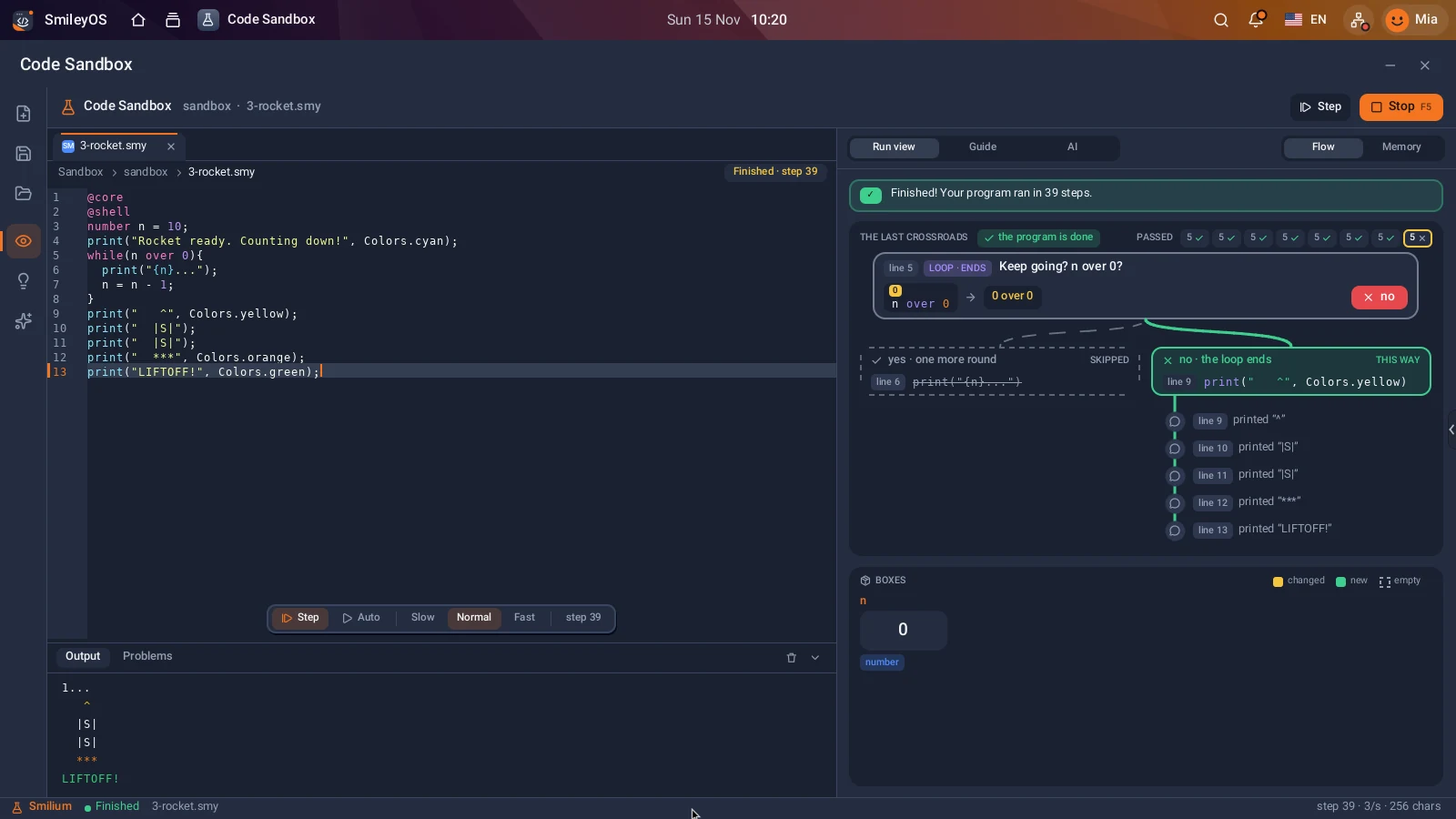
Your turn: count down from 20. Or count up to 10 with n = n + 1. What happens if you forget the line that changes n? (Press Stop!)
4. Times table (a function and a for loop)
@core
@shell
func table(number n) {
  print("The {n} times table:", Colors.yellow);
  for(i = 1; i < 11; i = i + 1){
    print("{n} x {i} = {n * i}");
  }
}
number pick = ask("Which times table? ");
table(pick);
func table(number n) teaches the computer a new word: table. Inside it, a for loop counts i from 1 to 10: where to start, how long to go on, and how to step. The last line uses the new word with the number you typed.
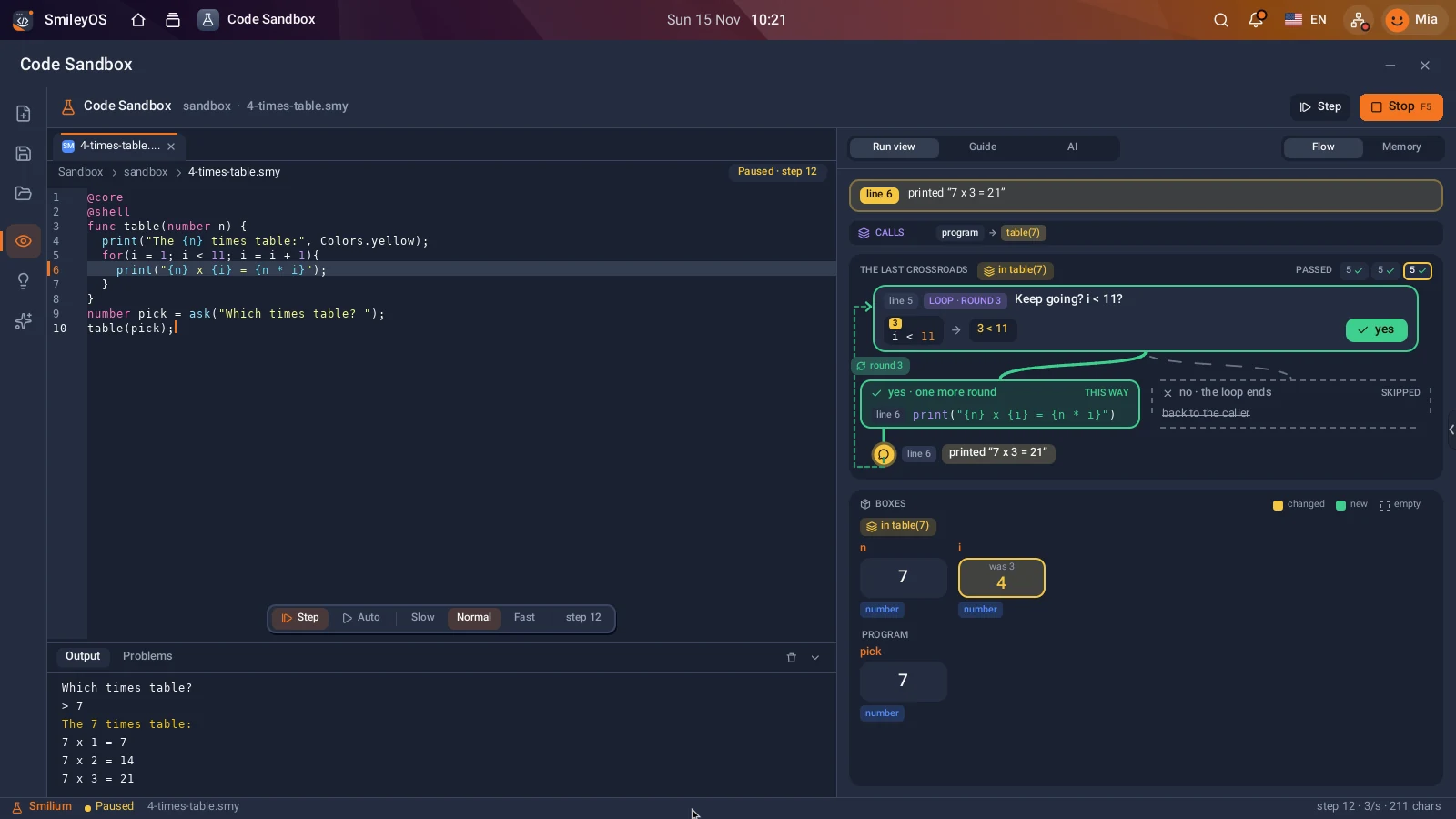
Your turn: call table twice with two different numbers, or make the table go up to 20.
5. Guess my number (a real game)
@core
@shell
@system
number secret = random(1, 20);
number guess = 0;
number tries = 0;
print("I am thinking of a number from 1 to 20.", Colors.yellow);
while(guess isnt secret){
  guess = ask("Your guess: ");
  tries = tries + 1;
  if(guess under secret){
    print("Higher!", Colors.cyan);
  }
  if(guess over secret){
    print("Lower!", Colors.magenta);
  }
}
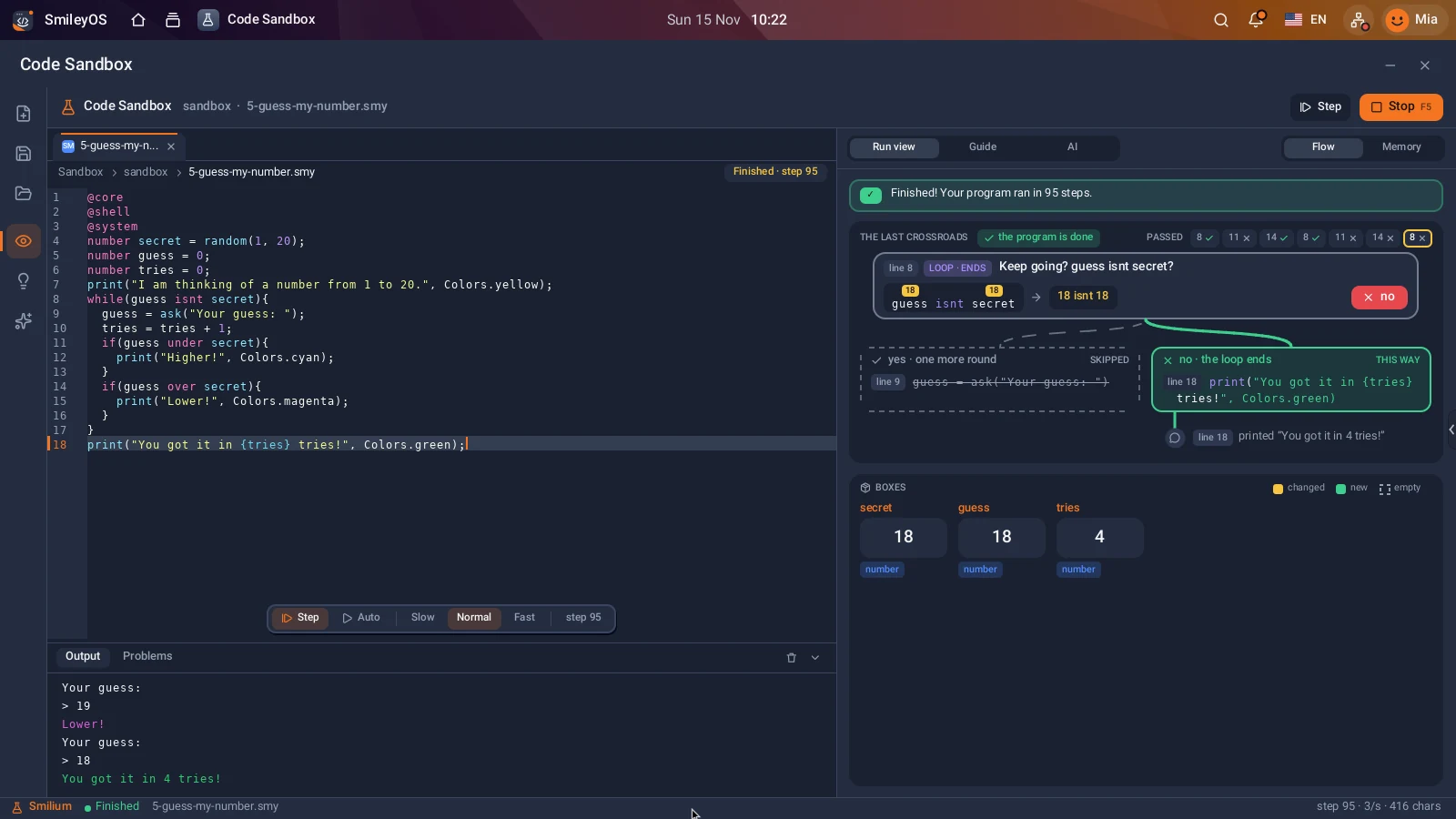
print("You got it in {tries} tries!", Colors.green);
@system brings random(1, 20): a number the computer picks by itself. The loop keeps asking while your guess isnt the secret, and tries counts your guesses. Everything from the first four programs is in this one: boxes, ask, if and a loop.
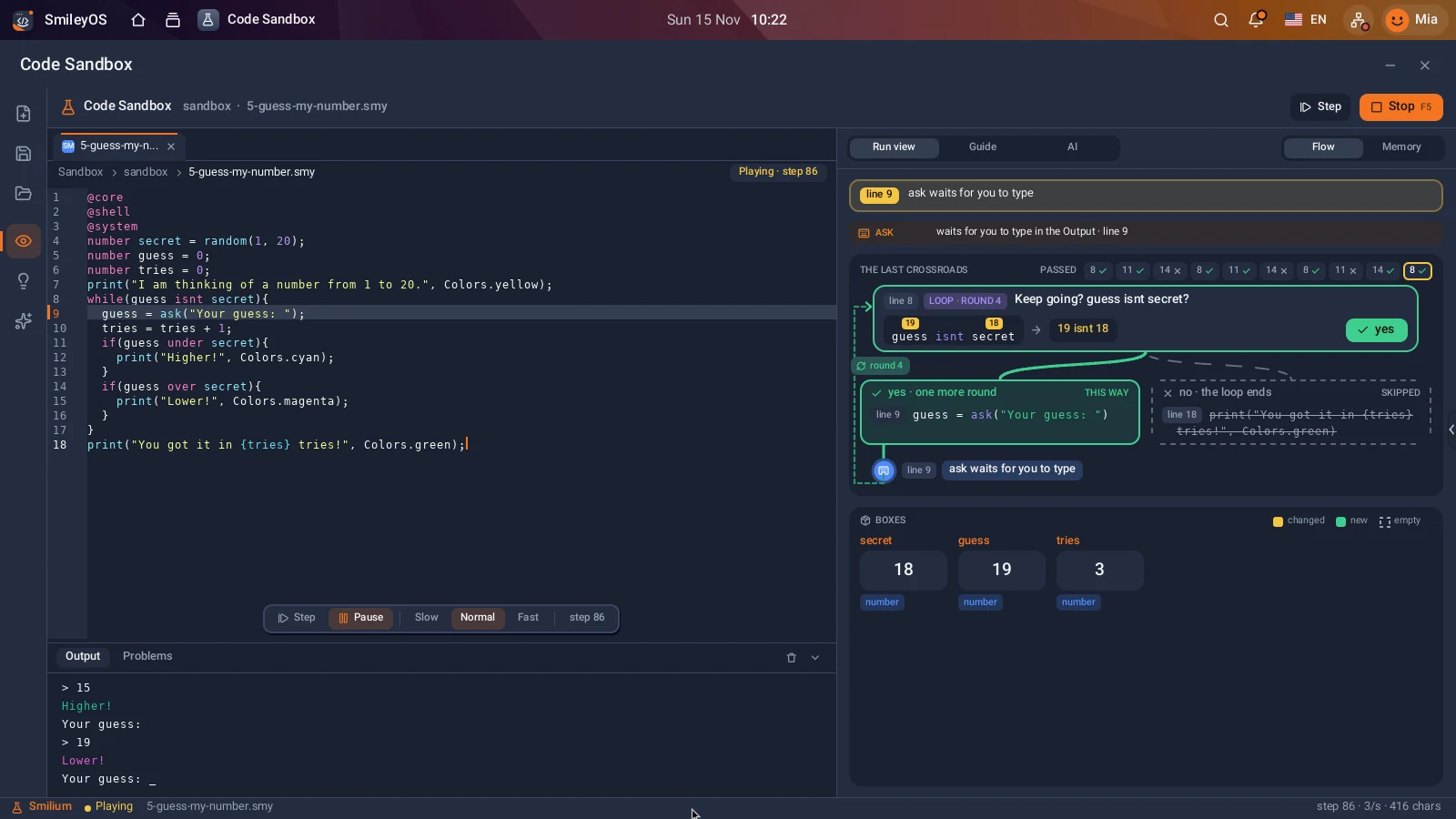
A tip from the screenshot: in SmileyOS the boxes panel shows the secret number. Great for checking your program, not so great for playing fair!
Your turn: make the secret go up to 100, or end the game after 7 tries (hint: and tries under 7).
When something goes wrong
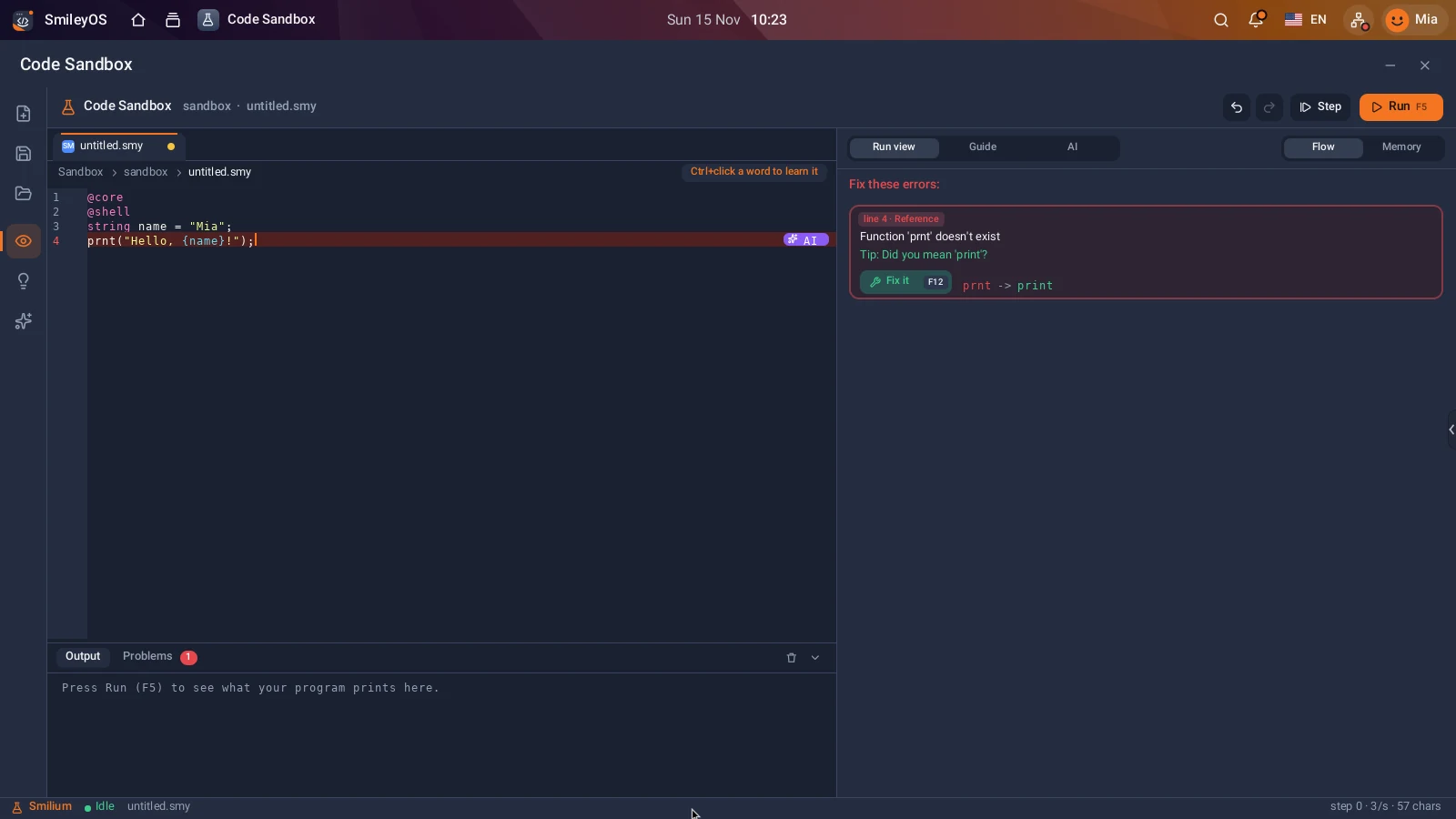
Everybody makes typos. Type prnt instead of print and Smilium tells you the line, what is wrong and what you probably meant. In SmileyOS the Fix it button (F12) changes the word for you. Mistakes are explained in English, Macedonian or Albanian.
What next?
The Code Sandbox in SmileyOS has 31 ready examples, from lists and structs to saving files, the weather from the internet and a class quiz. After that come the Smilium IDE for apps with buttons and Gamely2D for games. Read why we made Smilium, learn the first Terminal commands, or open the full Smilium documentation.
Try SmileyOS first
We are getting the first SmileyOS sticks ready for families, schools and learning centres. Sign up for early access and we will let you know as soon as you can try it on your own computer.
Did you like this post?
Share this post
Know a parent, teacher or school that should read this? Send it on.